WIF Store#
New in firmware versions Mk: v5.5.0, Q: v1.4.0Q
WIF Store lets COLDCARD® hold up to 30 individual private keys — encoded as WIF (Wallet Import Format) strings — and use them for signing as if they were part of the HD wallet, but stored separately from the master seed.
The store lives at Advanced/Tools > WIF Store.
A "WIF" is the standard Bitcoin Base58 encoding of a single 32-byte private key, prefixed with a network byte and (in the modern compressed form) suffixed with a 0x01 flag. COLDCARD's WIF Store accepts only compressed WIFs; uncompressed WIFs are rejected at import.
Why use it#
COLDCARD normally signs only with keys derived from its single master seed via BIP-32. WIF Store removes that limitation for a curated set of one-off keys:
- Sign for any one-off private key you have in WIF form — paper wallets and metal seed plates, vanity addresses, brain wallets, or keys produced by external tools (research scripts, custody systems). All can be spent through COLDCARD without first transferring funds via a hot wallet or bringing the key into the master seed tree.
- Air-gapped signing for non-HD keys — COLDCARD remains the cold signer; the keys live encrypted on-device and signing produces normal PSBT signatures.
The keys are kept in encrypted device settings (AES-256-CTR), persist across reboots, and survive Restore Master — but not Destroy Seed.
WIF Store entries are included in COLDCARD backups.
WIF Store entries are part of the encrypted backup automatically, alongside the rest of your COLDCARD settings. Restoring a backup brings the WIF Store back along with everything else.
Backups are snapshots — they only contain what was in the store at the moment you ran Backup System. After any change you care about preserving (importing a new key, deleting an entry), run Backup System again so your latest backup reflects the new state.
Importing WIFs#
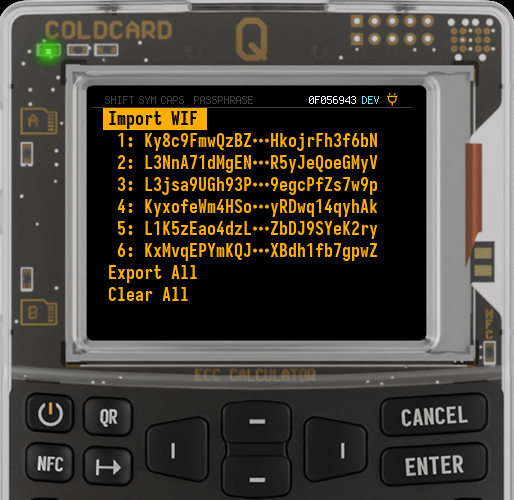
From Advanced/Tools > WIF Store, choose Import WIF and pick a source:
| Source | How | Notes |
|---|---|---|
| microSD file | Pick a .csv or .txt |
Multiple WIFs per file allowed, separated by commas, spaces, or newlines. |
| QR code | Press the QR key | Q only (built-in scanner) |
| NFC tap | Press the NFC key or 3 | Phone or NFC tag containing WIF text |
| Manual entry | Press 0 ("input WIF manually") | On-device keyboard |
Paper wallet files import directly
A COLDCARD-generated paper wallet .txt file (saved by Advanced/Tools > Paper Wallets > GENERATE WALLET) can be imported directly via the microSD source — the importer skips header lines and other non-WIF text, so the file works as-is with no editing required.
Validation at import#
Each WIF is checked before being stored:
- It must Base58-decode cleanly to a 33- or 34-byte payload.
- The first byte must be
0x80(mainnet) or0xef(testnet). - Only compressed-form WIFs are accepted (decoded length 34, trailing
0x01). - The network byte must match the current chain — a mainnet WIF will be rejected while COLDCARD is in testnet mode, and vice versa.
- Duplicates already present in the store are silently skipped.
- The total number of stored entries cannot exceed 30.
Working with stored entries#
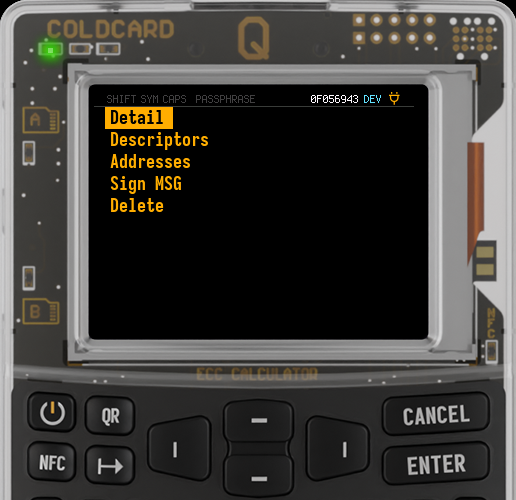
Each stored WIF gets its own submenu:
| Action | Effect |
|---|---|
Detail |
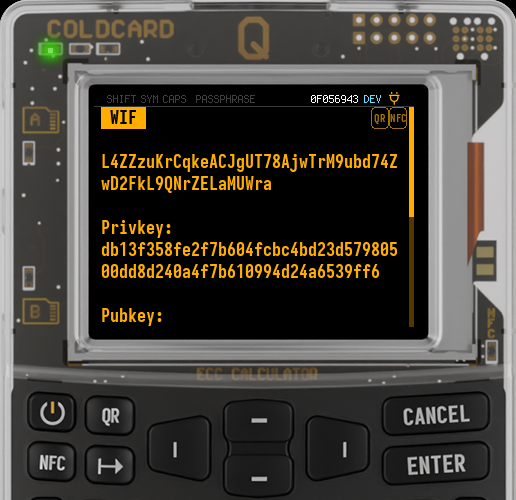
Shows the WIF, raw private key (hex), and pubkey (hex) on screen. Offers export of the WIF text. |
Descriptors |
Export a ready-to-use Bitcoin Core watch-only descriptor for the stored key. Pick an address format and share. See Exporting descriptors below. |
Addresses |
Pick an address format (Classic P2PKH, Segwit P2WPKH, or P2SH-Segwit) and view the single-sig address derived from this key. Offers export of the address text. |
Sign MSG |
Sign an arbitrary text message using this private key, in any single-sig address format. Same UX as standard message signing. |
Delete |
Remove this entry from the store, with a confirmation prompt. |
Hobbled mode
Several WIF Store actions are disabled in hobbled mode: Import WIF, Delete, and Clear All. Viewing, signing, and exporting remain available.
WIF Store itself is only reachable in hobbled mode when the Related Keys option is enabled in the SSSP Menu; otherwise the WIF Store entry is hidden along with the other related-keys features.
The Detail view shows the full WIF, the raw private key (hex), and the pubkey (hex):
Exporting descriptors#
The Descriptors action emits a complete, checksummed Bitcoin Core descriptor for the stored key. After picking an address format, the output is one of:
| Address format | Descriptor template |
|---|---|
Classic P2PKH |
pkh(<hex_pubkey>)#<csum> |
Segwit P2WPKH |
wpkh(<hex_pubkey>)#<csum> |
P2SH-Segwit |
sh(wpkh(<hex_pubkey>))#<csum> |
Exported string can be pasted directly into Bitcoin Core's importdescriptors command.
Bulk operations#
Two actions appear on the main WIF Store menu when more than one entry exists:
Export All— dumps every WIF in the store to a microSD file, QR code, or NFC payload (one WIF per line).Clear All— wipes every entry from the store. Confirmation requires pressing the 4 key (not the standard OK), to make accidental destruction harder.
Export All is plaintext
Unlike the encrypted COLDCARD backup, Export All output is plaintext — every WIF appears in the clear in the file, QR, or NFC payload. Anyone who reads it can spend those funds. Handle the export accordingly.
Signing PSBTs with WIF Store keys#
During PSBT review, every input is checked against WIF Store. If an input's required key is in the WIF Store:
- The input is treated as "ours" and will be signed.
- A warning appears in the approval flow:
WIF Store: Some input(s) use key from the WIF store: 1.
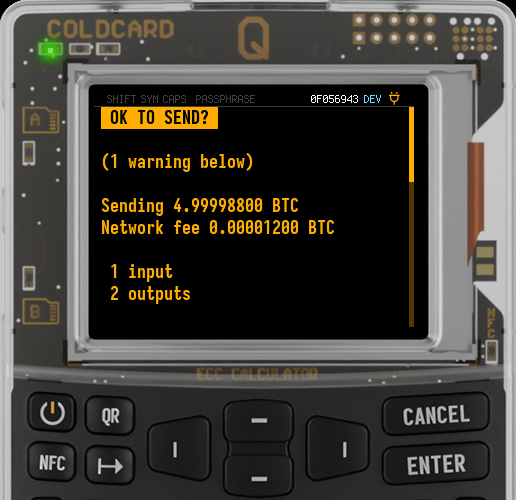
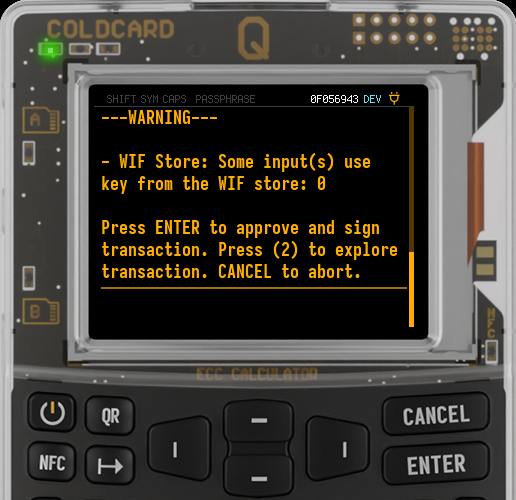
- The "Our key" field ont the input explorer screen is annotated with
(WIF Store)next to the pubkey. - Signing proceeds as normal — you approve, and COLDCARD produces a valid signature.
Wallet compatibility#
When COLDCARD reviews a PSBT input, it tries two matching paths against the WIF Store, in order:
- By BIP-32 derivation hint. If the input has a BIP-32 derivation entry whose pubkey is in the store, that entry signs.
- By scriptPubKey. If the input has no BIP-32 derivation, COLDCARD hashes every stored WIF's pubkey and compares against the input's scriptPubKey. On a match, that WIF signs.
Path 2 is what lets WIF Store work with wallets that don't emit BIP-32 derivation paths for non-HD keys.
- Bitcoin Core — The walk-through below is the canonical end-to-end procedure.
- Electrum — Electrum does not emit BIP-32 paths for non-HD keys, so spends from imported-address wallets rely entirely on the scriptPubKey match.
Other wallets are not currently documented or tested for air-gap use with WIF Store.
WIF Store & Address Ownership#
When using the Verify Address Ownership feature, after the HD wallet and registered multisig wallets fail to find a match, COLDCARD also iterates through WIF Store entries to check whether any of their derived single-sig addresses match the searched address. On a hit, it reports the matching WIF Store entry index.
Limits and caveats#
| Limit | Value | Notes |
|---|---|---|
| Maximum entries | 30 | Hard-coded |
| Address formats supported | Classic P2PKH, Segwit P2WPKH, P2SH-Segwit | Single-sig only; no multisig, no taproot |
| Pubkey form | Compressed only | Uncompressed WIFs are rejected at import |
| Persistence | Encrypted nvstore | Survives reboot and Restore Master; wiped by Destroy Seed |
| Seed scope | Per active seed | WIF Store entries belong to the currently-active seed (master, BIP-39 passphrase temporary seed, or Seed Vault entry). Switching seeds shows that seed's WIF Store; the originals reappear when you return. |
| Backup behaviour | Included in encrypted backups | Restored automatically along with other settings. |
Walk-through: spend a paper wallet using WIF Store#
Goal: spend a UTXO locked to a paper-wallet private key, using COLDCARD as the air-gapped signer.
Prerequisites:
- COLDCARD set up with a master seed. WIF Store does not work on a blank device.
- The paper wallet's compressed WIF and the address it funds.
- A way to construct PSBTs — a Bitcoin Core descriptor wallet is recommended.
Steps:
-
On COLDCARD:
Advanced/Tools > WIF Store > Import WIF. Choose a source and provide the WIF. -
Verify the import. The menu now shows the truncated WIF as an entry. Open it, choose
Addresses, and confirm the displayed address matches the paper-wallet address that holds your funds. -
From the same entry, choose
Descriptors > Classic P2PKH(or whichever address format your paper wallet uses) and export. The exported string is a complete checksummed descriptor — for example,pkh(<hex_pubkey>)#<csum>— ready to paste into Bitcoin Core. -
On a workstation with Bitcoin Core, create a watch-only descriptor wallet for the paper-wallet key:
bitcoin-cli createwallet "paper" true true "" false truePositional flags:
disable_private_keys=true,blank=true,passphrase="",avoid_reuse=false,descriptors=true. -
Import the descriptor you exported from COLDCARD in step 3:
bitcoin-cli -rpcwallet=paper importdescriptors '[{
    "desc": "<paste-descriptor-from-coldcard>",
    "timestamp": 0,
    "active": false
}]'
"timestamp": 0triggers a chain-wide rescan to find UTXOs from any point in history. This can take half an hour or longer;listunspentreturns an empty array until the rescan finishes. Watch progress withbitcoin-cli getwalletinfo— thescanningfield disappears when the rescan completes.If you know roughly when the UTXO was funded, replace
0with a Unix timestamp a little earlier than that — e.g.1735689600for 2025-01-01 00:00 UTC. Bitcoin Core then only rescans from that height onward, which is dramatically faster than scanning from genesis. -
Once the UTXO is visible, build a funded PSBT spending it:
bitcoin-cli -rpcwallet=paper listunspentbitcoin-cli -rpcwallet=paper walletcreatefundedpsbt \ '[]' \ '[{"<destination>": 0.0009}]' \ | jq -r '.psbt' > paper.psbtwalletcreatefundedpsbtreturns a JSON object; thejq -r '.psbt'filter extracts the Base64 PSBT and writes it topaper.psbtfor transfer to COLDCARD. -
Transfer
paper.psbtto COLDCARD via microSD or use NFC, or QR. -
Sign on COLDCARD. The standard sign-PSBT flow runs. COLDCARD recognizes the input as belonging to a WIF Store entry and shows a warning:
WIF Store: Some input(s) use key from the WIF store. Approve and sign. -
Transfer the signed PSBT back to the workstation and broadcast it:
TX=$(bitcoin-cli finalizepsbt "<signed_psbt>" | jq -r '.hex') bitcoin-cli sendrawtransaction "$TX"finalizepsbtreturns a JSON object; thejq -r '.hex'filter pulls the raw transaction hex out for the broadcast call. -
Optional cleanup: in
WIF Store, delete the entry once the spend is confirmed. The private key is no longer needed and removing it shrinks the device's exposure surface. If you've made a COLDCARD backup since importing this WIF, the entry is captured there and deleting from the device does not lose recoverability — restoring that backup would bring the entry back. Otherwise, runBackup Systemfirst, or useDetail > Exportto save the WIF before deleting.
Walk-through: spend a paper wallet using Electrum#
GUI-only alternative to the Bitcoin Core flow above. Same prerequisites.
- On COLDCARD:
Advanced/Tools > WIF Store > Import WIF. Open the entry, pickAddressesand the format your paper wallet uses, then export the address. - In Electrum (on the same network as the WIF):
File > New/Restore > "Import Bitcoin addresses or private keys", paste the address, finish the wizard. The wallet opens watch-only. - Wait for Electrum to sync. The UTXO appears in the
HistoryandCoinstabs. - On the
Sendtab, paste a destination, set amount and fee, clickPay…. - In the dialog, click
Finalize(do not sign — Electrum has no key). ThenSave…to write a.psbtfile (orSend to QRon supported builds). - Transfer the
.psbtto COLDCARD via microSD, NFC, or QR. Sign on COLDCARD — WIF Store's auto-detect picks up the input. WIF Store warning visible in signing UX. - Transfer the signed PSBT back to Electrum and broadcast:
Tools > Load transaction > From file, thenBroadcast.