Master Seed
What are Seeds?#
Your Bitcoin seed is the root of your wallet, generating all your private keys. Typically expressed as a set of seed words under the BIP-39 standard, these words hold all the information needed to recreate your entire wallet (past and future addresses) on any compatible software. This makes your seed a true superpower, granting you vendor-agnostic control.
With just your seed words, you can restore your Bitcoin across nearly any wallet, free from reliance on custodial entities, centralized systems, or closed source "trust me" stacks. This sovereignty aligns with Bitcoin’s decentralized ethos, empowering you to securely and independently manage your funds with unmatched freedom.
What is the Master Seed?#
The Master Seed is the core secret for your COLDCARD®. Not only is this seed used to derive all of your Bitcoin addresses, but it is also the source of creation for many other secrets on the COLDCARD. The Master Seed is used to derive the following secrets:
This makes creation, backup, and protection of your Master Seed extremely critical. Anyone with access to your unencrypted Master Seed can steal your funds and derive any of the other mentioned secrets. That could be a person that finds your seed words written down, or a remote attacker that simply generated for themselves a Master Seed with weak entropy.
In the Create a New Master Seed section we will guide you through generating a new Master Seed on a COLDCARD using one of three required user-entropy methods.
If you already have a BIP-39 based wallet, other private key material, or intend to clone an existing COLDCARD, you can jump to the section Import an Existing Seed to learn more.
To create or import a Codex32 wallet, or split and recover a secret using Shamir shares, see Codex32 & Shamir Secret Sharing. COLDCARD also supports splitting a seed-word or extended-key wallet into shares without changing its keys.
Create a New Master Seed#
Check Firmware Before Creating a Seed
Check the current security status, install a fixed firmware release for your model and release track, and verify the signed firmware download before choosing New Seed Words. Updating firmware does not change or repair an existing affected seed; follow the dedicated migration guide for that seed.
Earlier Firmware in Videos
Older videos may show the seed words immediately after selecting their length, with an option to add dice later. Current firmware requires you to choose and complete a user-entropy method before the words are shown. Follow the steps below for the current workflow.
You can create a new Master Seed (12 or 24 words) directly on an empty COLDCARD. That can be either a new device, or one that has had the Master Seed destroyed.
For every new Master Seed, the COLDCARD first combines fresh values from the STM32 True Random Number Generator (TRNG) and both Secure Elements. You must then add user-supplied entropy by mashing keys, rolling a physical die, or flipping a physical coin. The COLDCARD hashes the device-generated and user-supplied values together to create the seed. You cannot skip the user-entropy step.
Bring Your Own Entropy
Dice Rolls (Recommended): Enter at least 50 fair, independent, private rolls from a real six-sided die. Roll the die again before every entry. If any face occurs more than 30% of the time, the COLDCARD rejects the set as obviously biased and you must choose an entropy method again. This narrow check does not prove that the rolls were random.
Coin Flips: Enter at least 128 fair, independent, private flips from a real coin, using 1 for heads and 0 for tails. Flip the coin again before every entry. If heads or tails occurs more than 65% of the time, the COLDCARD rejects the set as obviously biased. This narrow check does not prove that the flips were random.
Mash Keys: Press any key at least 65 times. You may repeat the same key because entropy credit comes from the measured time between presses, not from which keys you choose. Vary your pace deliberately: mix short and long pauses, and avoid following a regular beat, timer, or metronome.
The first press establishes a timing reference, and each of the next 64 gaps is conservatively credited with two bits of entropy. Key choices are also mixed into the result, but receive no entropy credit in our calculations; varying the keys can still contribute additional external entropy. You may continue pressing beyond the minimum to contribute more timing entropy. COLDCARD combines this input with randomness from the STM32 TRNG and both Secure Elements before generating the seed.
The Mash Keys method is based on Peter Todd's Push-Button RNG.
These three standard options supplement the COLDCARD's device-generated randomness. They are different from the advanced Dice Rolls Only workflow, which excludes all hardware-generated randomness and requires additional precautions.
Choose from the dropdowns below to follow the standard combined-entropy workflow or the advanced dice-only workflow.
Create a New Master Seed Using Device and User Entropy
Device and User Entropy#
-
Select
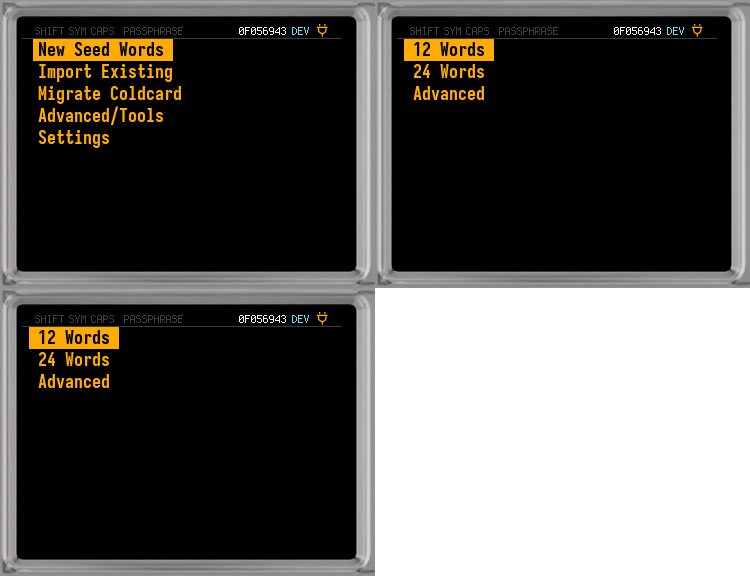
New Seed Wordsfrom the Main Menu of an empty COLDCARD.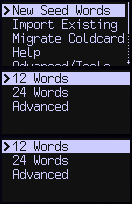
-
Choose
12 Wordsor24 Wordsto create a seed of that length. -
After the COLDCARD generates its device entropy, choose one required user-entropy method:
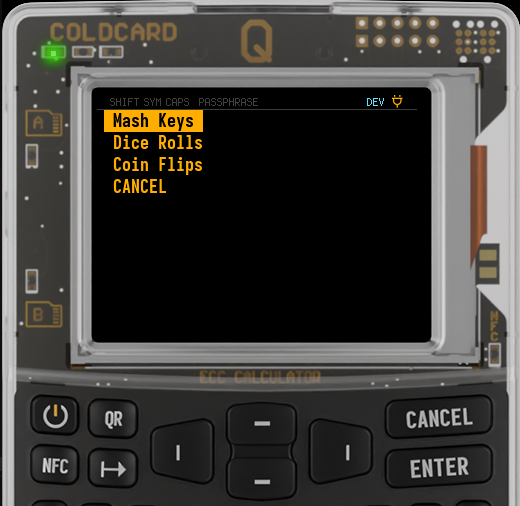
Mash Keys,Dice Rolls, orCoin Flips.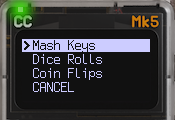
On Mk4/Mk5 5.6.2 and Q 1.5.2Q or later,
View TRNG Wordsshows the full 256-bit device-generated value as 24 BIP-39 words before your input is mixed in. Select it only if you plan to check dice-roll or coin-flip mixing, then return to this menu and choose the method you will use. The verification tool does not support Mash Keys.Verification Exposes Wallet Secrets
The TRNG words, your complete dice or coin sequence, and the resulting seed words are wallet secrets. Anyone who gets the TRNG words together with your complete input can recreate the wallet and steal its funds. The safest way to check the math is with a disposable seed-generation run that will never hold funds. Then start over with new TRNG words and fresh, unrecorded rolls or flips for the real wallet.
-
Read the instructions on-screen and press ✔/ENTER to start. Use the physical source exactly as instructed:
-
For
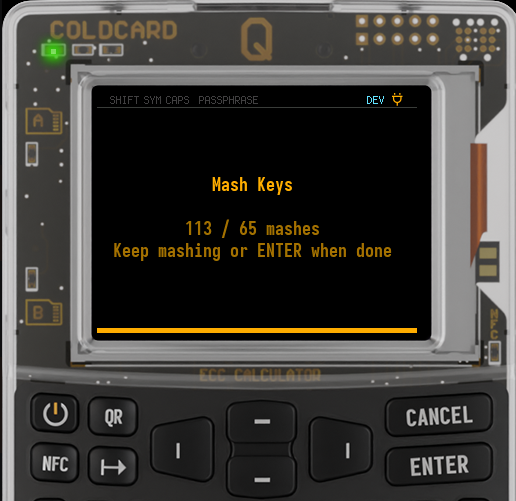
Mash Keys, press any key at least 65 times while varying your pace. Mix short and long pauses, avoid a steady rhythm, and repeat the same key if you wish. Once the minimum is reached, you may keep mashing or press ✔/ENTER to finish.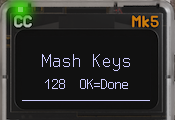
-
For
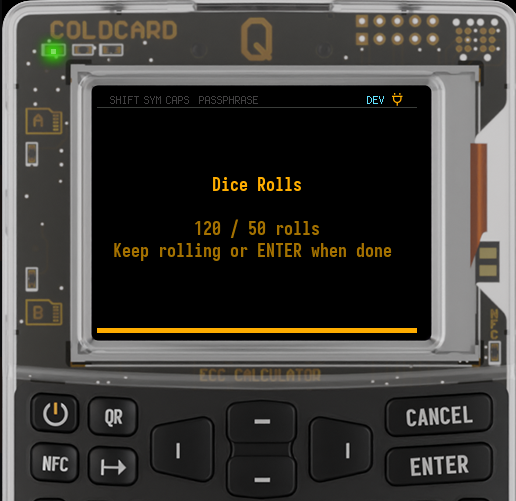
Dice Rolls, roll a real six-sided die before each entry and enter at least 50 results using keys 1 through 6.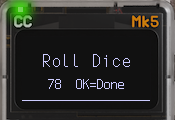
-
For
Coin Flips, flip a real coin before each entry and enter at least 128 results using 1 for heads and 0 for tails.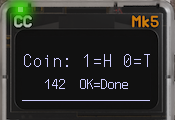
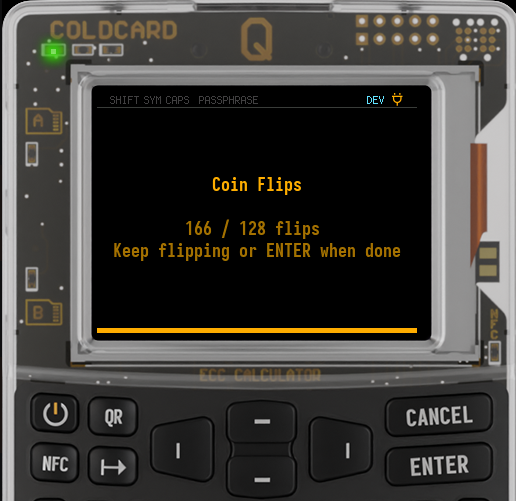
You may enter more than the required minimum. Do not invent inputs or use an app or computer as the source.
-
-
Press ✔/ENTER after reaching the minimum. If the dice or coin results have an obviously bad distribution, the COLDCARD rejects them and returns you to the entropy-method menu.
-
The COLDCARD combines the device and user entropy, then displays the new seed words.
-
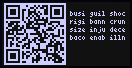
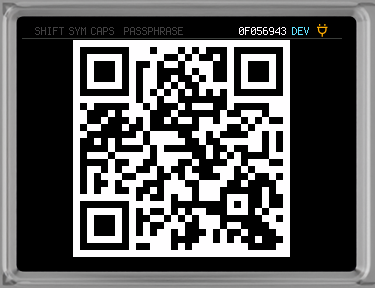
Use 1/QR to view the seed words as a QR code.
-
-
Write down the seed words to use as a backup! A card was included with your COLDCARD that you can use for recording your words.
You MUST keep a backup of your Master Seed!
Without a backup of your Master Seed, you will lose access to your Bitcoin if anything happens to your COLDCARD. Loss, theft, forgotten PIN, or hardware failure are just some of the ways you may lose access to your COLDCARD.
The best way to backup all of your COLDCARD info, including the Master Seed, is to use the built-in encrypted backup.
-
Press ✔/ENTER to begin the test of your backup.
-
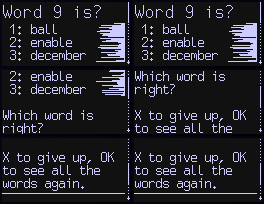
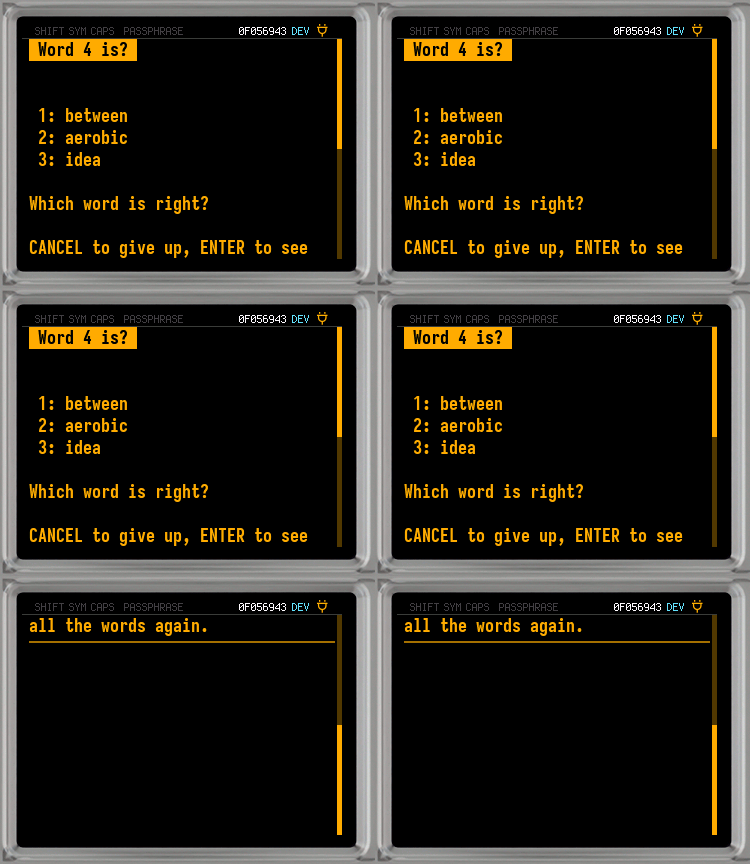
You'll be given multiple choices for a random seed word. Refer to your backup and choose the right word.
-
Repeat until you have successfully picked each seed word.
-
At any point you can tap ✔/ENTER to see the words again.
-
If you need, you can give up on these words and create new ones. Hit X/CANCEL, read the warning, then press ✔/ENTER. Go back to Step 2 and follow along from there.
-
-
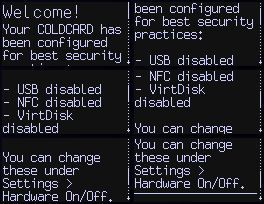
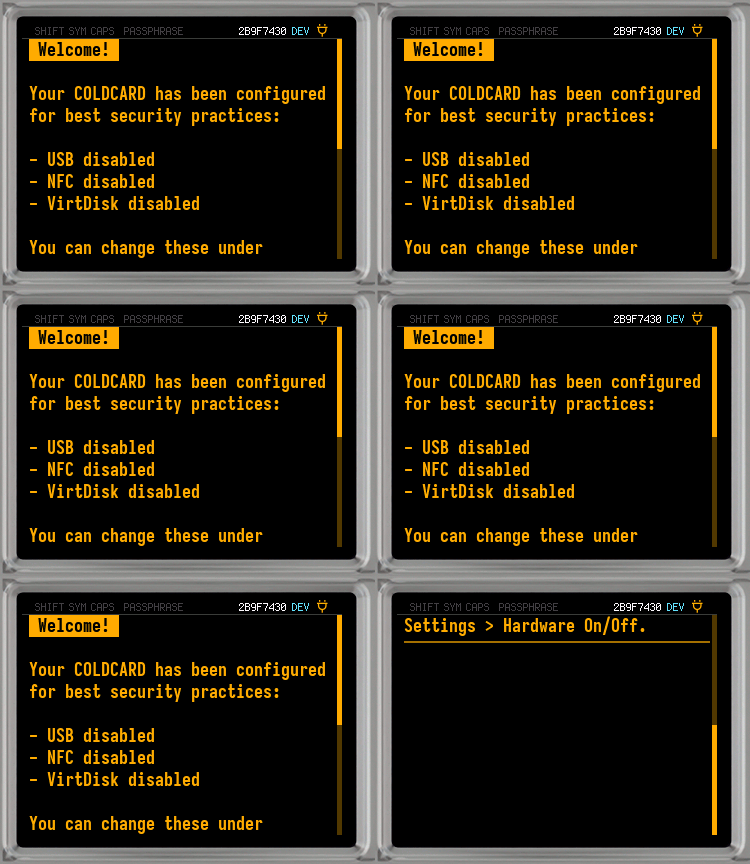
Once you've successfully passed the test, the new Master Seed will be applied to your COLDCARD and you will get some welcome info. Press ✔/ENTER when you're ready to use your COLDCARD.
Be sure to store the written backup of your seed words safely, and/or create an Encrypted Backup at this point.
Create a New Master Seed Using Dice Rolls Only
Dice Rolls Only#
-
Go to:
New Seed Words > Advancedfrom the Main Menu of an empty COLDCARD.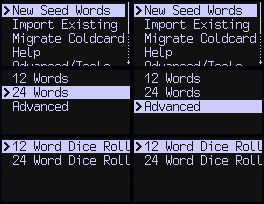
-
Choose the length of the seed you are creating:
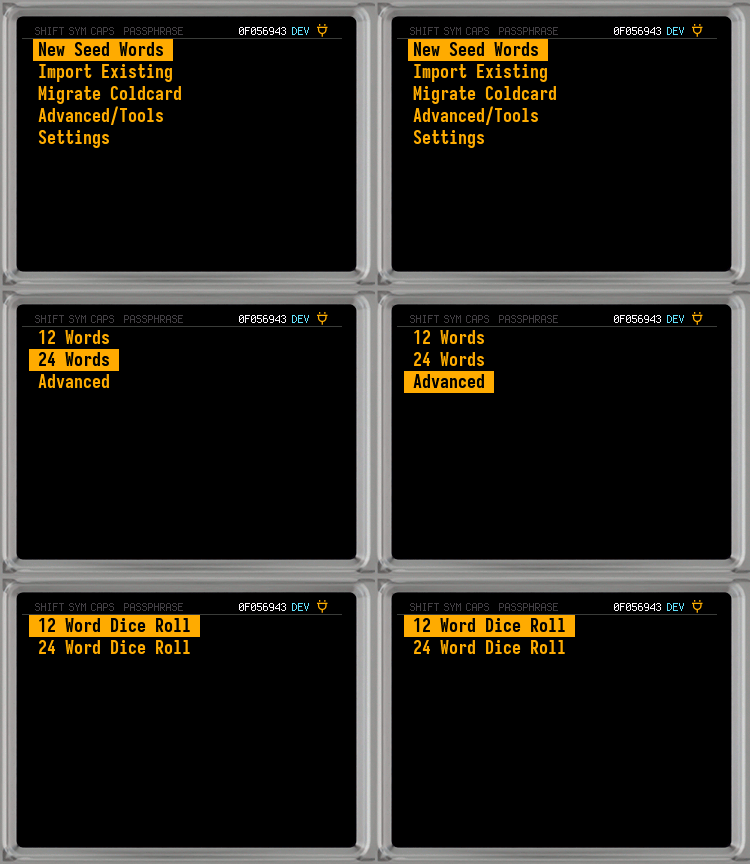
12 Word Dice Rollor24 Word Dice Roll. -
Read the warning that no hardware-generated randomness will be included. The final hash shown while rolling is secret: anyone who obtains it can recreate your wallet. Keep the screen hidden from people and cameras. Press ✔/ENTER to continue or X/CANCEL to exit.
-
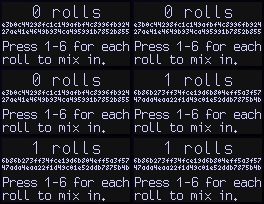
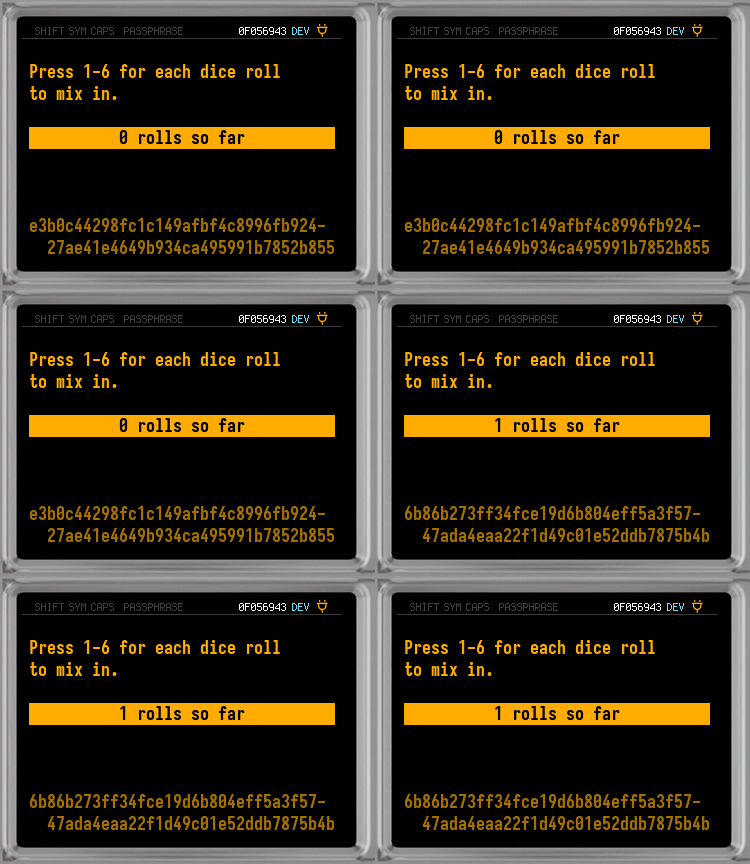
Roll a six-sided die and enter the number rolled on the COLDCARD. You'll see the seed change with each dice roll. For more info see Verifying Dice Roll Math.
-
Repeat Step 4 until you have reached a total of 50 rolls for a 12 word seed (128 bits of entropy), or 99 rolls for a 24 word seed (256 bits of entropy), and enter each number rolled into the COLDCARD.
No Shortcuts on Dice Rolls!
The strength of your Master Seed depends on the minimum number of dice rolls being met, and that the die is actually rolled each time. You cannot fabricate dice rolls without compromising security, possibly resulting in stolen funds!
The only way to speed up this process is to use multiple dice to limit rolls. You can get a set of 100 small dice at the Coinkite Store.
-
When all your rolls are entered, press ✔/ENTER.
-
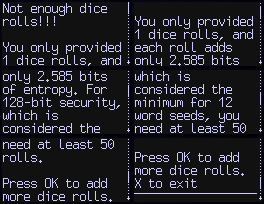
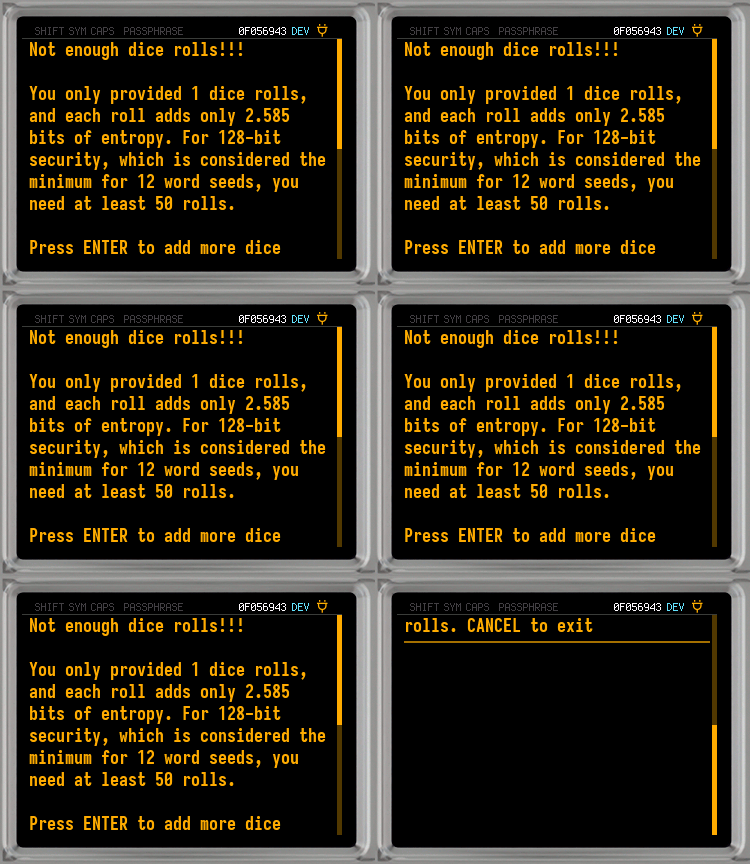
If you have not entered the minimum number of rolls required for your seed length, you will receive an error. Use ✔/ENTER to add more dice rolls, or X/CANCEL to abort.
-
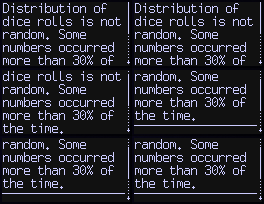
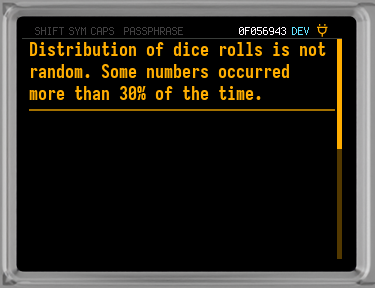
You can also trigger an error if the COLDCARD believes your rolls were not random enough. In this case you'll have to hit ✔/ENTER to start over from Step 2.
-
-
The COLDCARD will show the seed words created from the dice rolls you entered on-screen.
-
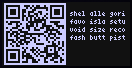
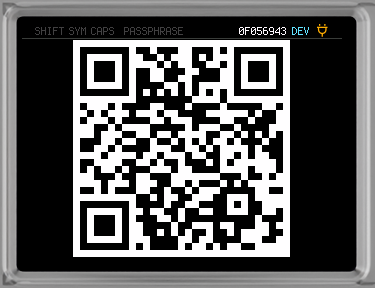
To view the seed words as a QR code, use 1/QR.
-
-
Write down the seed words to keep as a backup! Your COLDCARD came with a card that you can use to write your words on.
You MUST keep a backup of your Master Seed!
Without a backup of your Master Seed, you will lose access to your Bitcoin if anything happens to your COLDCARD. Loss, theft, forgotten PIN, or hardware failure are just some of the ways you may lose access to your COLDCARD.
The best way to backup all of your COLDCARD info, including the Master Seed, is to use the built-in encrypted backup.
-
Once you have the words backed up, press ✔/ENTER to begin the test of your backup.
-
You'll be asked to select your seed words in random order from multiple choices. Refer to your backup and choose the right words.
-
Repeat until you have successfully picked each seed word.
-
At any point you can tap ✔/ENTER to see the words again.
-
If you need, you can give up on these words and create new ones. Hit X/CANCEL, read the warning, then press ✔/ENTER. Go back to Step 2 and follow along from there.
-
-
Once you've successfully passed the test, the new Master Seed will be applied to your COLDCARD and you will get some welcome info. Press ✔/ENTER when you're ready to use your COLDCARD.
Be sure to store the written backup of your seed words safely, and/or create an Encrypted Backup at this point.
Before Funding a Meaningful Balance
For any wallet intended to hold an amount whose loss would be materially harmful to you, use a strong, unique BIP-39 passphrase. "Meaningful" is personal, not a fixed bitcoin or fiat threshold. Apply the passphrase only after backing up and checking the seed; then back up the passphrase exactly and separately, record the passphrase wallet's fingerprint, and complete a power-cycle and recovery test before depositing funds. The base wallet without a passphrase is better reserved for setup, testing, or a deliberately limited balance.
Import an Existing Seed#
You can import an existing seed to use as your COLDCARD's Master Seed. The imported seed can be seed words, raw XPRV, a COLDCARD backup file, a clone of another COLDCARD, or a combination of seeds previously split with Seed XOR.
To import an existing seed, you must start with an empty COLDCARD. That can be either a new device, or one that has had the Master Seed destroyed. Then select Import Existing from the Main Menu.
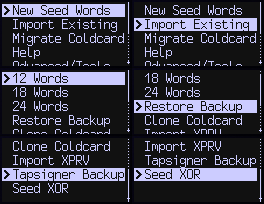
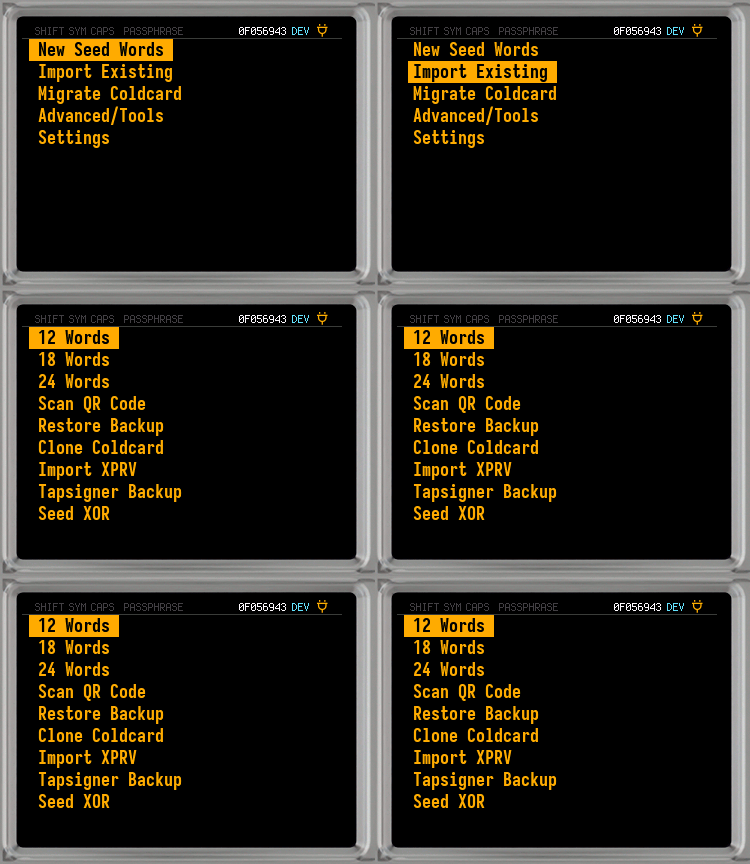
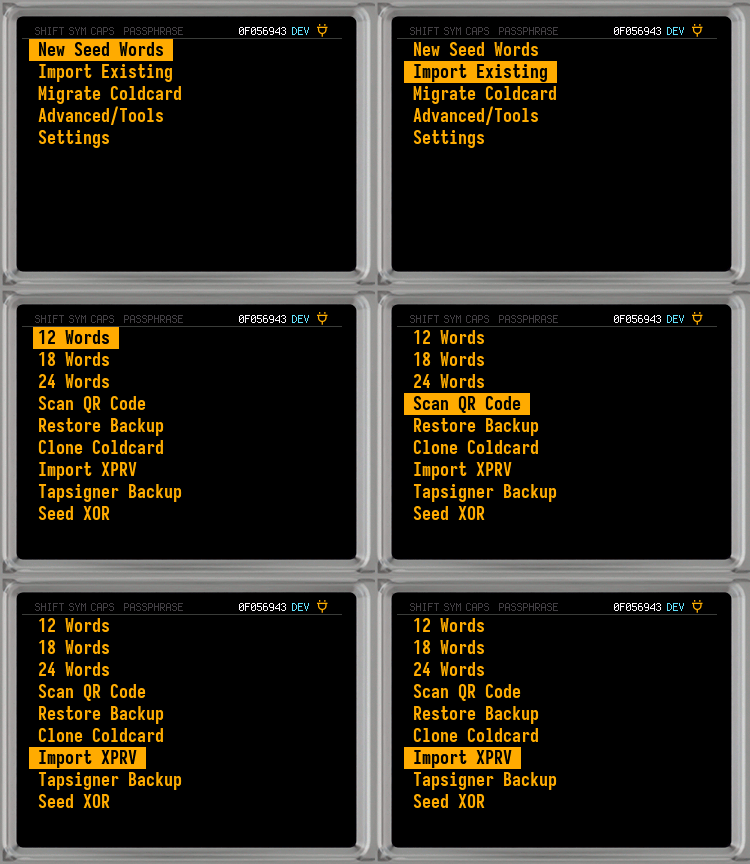
Once on the Import Existing Menu, choose from one of the options listed below. Use the dropdowns, or provided links, to learn more about each import method.
12/18/24 Words#
Choose the number of words (12, 18, or 24) in the BIP-39 (English only) seed you would like to import. The final word is a checksum value that verifies the other words.
Steps to Import Seed Words
-
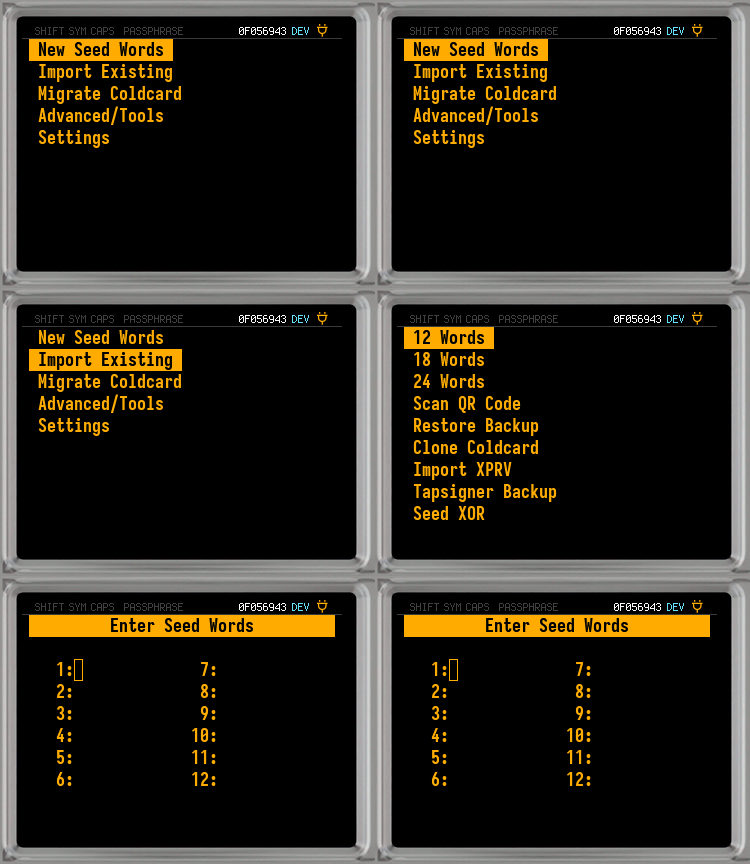
From the Import Existing Menu, select your seed length:
12 Words,18 Words, or24 Words.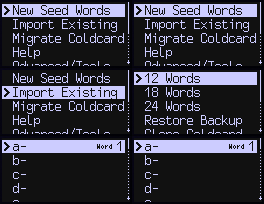
-
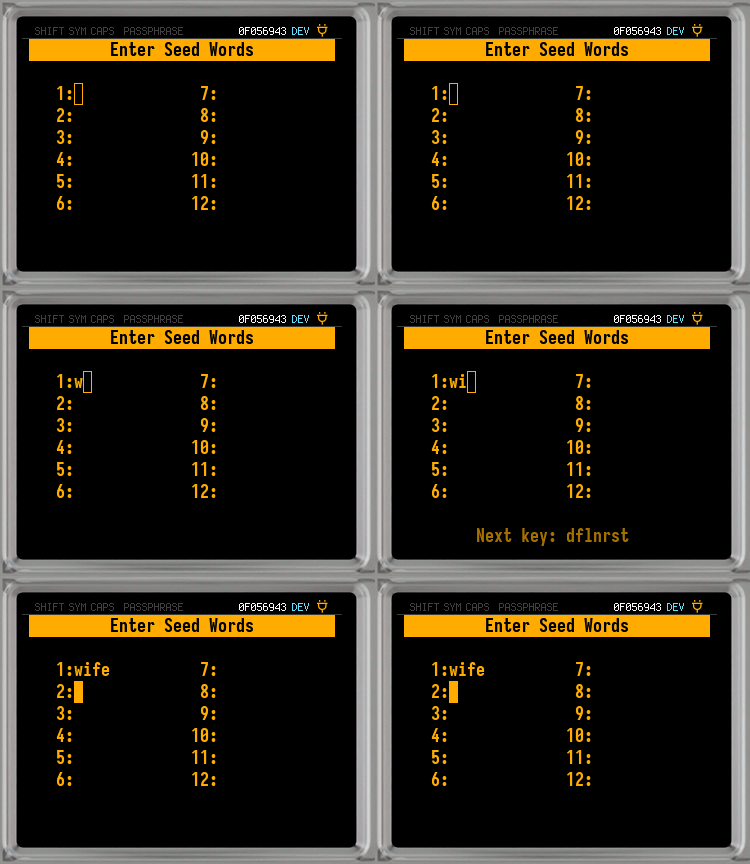
Enter your seed words in the correct order:
-
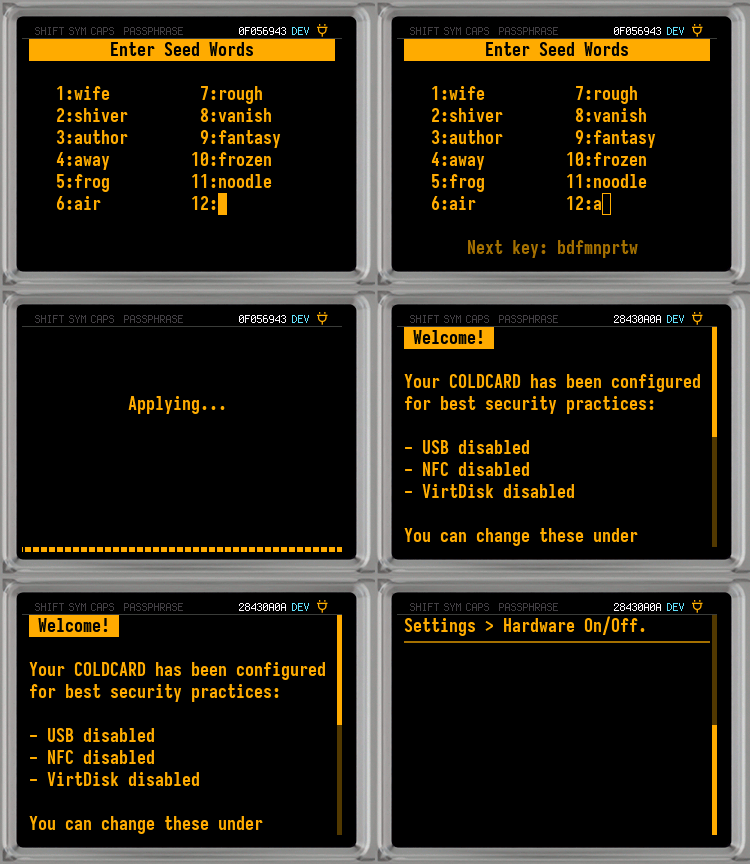
COLDCARD Q: Use the keyboard to type each of your seed words. When you've typed enough characters the words will auto-complete for you. For shorter words, you may have to press ENTER to move on.
If you make any mistakes, use the ⌫ key to go back a single character or a whole word. Tap CANCEL if you need to quit.
- To scan a QR code of the seed words, hit QR.
-
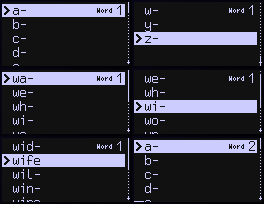
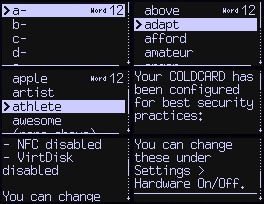
COLDCARD Mk4: Scroll up and down to select each letter of each word individually until all words have been entered. Use 5 and 8 to scroll through your choices, which reduce with each letter you add. Your current word count is on the top right corner of the screen.
Use the X key to go back a character or word, press repeatedly to remove all words and start over.
-
-
Once you enter the final word, press ✔/ENTER and the seed will be applied to your COLDCARD.
Scan QR Code (Q only)#
Starts the QR scanner for reading a QR code containing an XPRV or seed words.
For instructions, go to: Scan Seeds.
Restore Backup#
Import a backup file from another COLDCARD. You will need the backup file (7z) on the MicroSD card, and you must enter the 12-word password that was provided at the time the backup was created.
To learn more, see: Restore Backup as Master Seed.
Clone Coldcard#
Starts a secure process to clone an existing COLDCARD's data to this COLDCARD. You will need a MicroSD card, the source COLDCARD (to be cloned), and the empty COLDCARD all physically present to complete the procedure.
On a blank COLDCARD, the top-level Migrate Coldcard menu item starts the same cloning process as Import Existing > Clone Coldcard.
For details, head to: Clone or Migrate a COLDCARD.
Import XPRV#
To import an XPRV, you must provide a cleartext file via MicroSD, Virtual Disk, NFC, or QR code (Q only) with a BIP-32/SLIP-132 base58-serialized extended master private key, such as xprv, tprv, yprv, or zprv. It should be on a single line of a text file. The rest of the file is ignored.
There is no encryption when importing an XPRV, therefore it is considered hazardous and is only recommended for testing purposes!
Steps to Import XPRV
-
Prepare the XPRV by putting it on an SD card, the COLDCARD's Virtual Disk, or in a QR code.
- If using an SD card, insert it in the COLDCARD after transferring the XPRV.
-
Select
Import XPRVfrom the Import Existing Menu.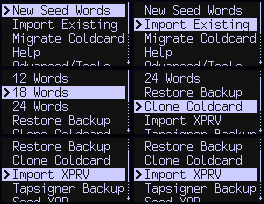
- On the Mk4, if the Virtual Disk and NFC are not enabled, the COLDCARD will list all files on the SD card that contain an XPRV. Pick the file and hit ✔ to apply the XPRV as the Master Seed of the COLDCARD. You can move on to Step 4 now.
-
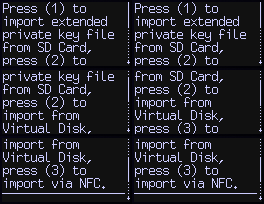
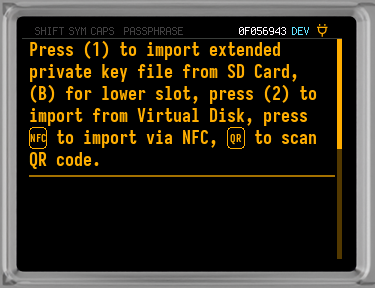
On the Q, and the MK4 when the Virtual Disk is enabled, you will have to choose where to import the XPRV from:
-
1/B: Import the XPRV from an SD card (on the Q: use 1 for Slot A, or B for Slot B). Select the file and press ✔/ENTER to apply the XPRV as the Master Seed.
-
2: Use the Virtual Disk (if enabled) storage for the XPRV. Pick the filename from a list of candidate files found on the Virtual Disk. Once selected, tap ✔/ENTER and the XPRV will be applied as the Master Seed.
-
3/NFC: Transfer the XPRV via NFC (if enabled) to apply as the Master Seed. Tap an NFC-enabled device to the COLDCARD to transfer the XPRV, and apply it as the Master Seed.
-
QR (Q Only): Starts the QR scanner to import the XPRV from a QR code. Scan a QR code containing an XPRV and it will be applied to the COLDCARD as its Master Seed.
-
-
After successfully transferring and applying the XPRV, you'll be presented a welcome message. To start using the COLDCARD with the new Master Seed, press ✔/ENTER.
Tapsigner Backup#
Uses a TAPSIGNER® backup file to import the seed from the TAPSIGNER as the Master Seed on the COLDCARD.
Steps to Import Tapsigner Backup
Import From TAPSIGNER to COLDCARD#
To import your TAPSIGNER backup (XPRV) to your COLDCARD you must have two things:
-
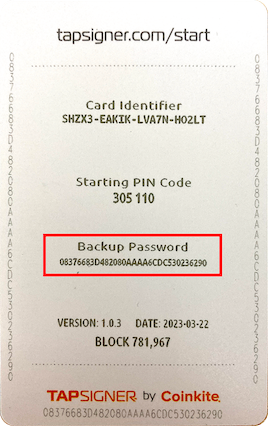
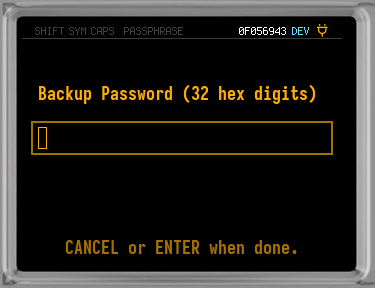
Backup Password: A 32-character hexadecimal string located on the back of the card under the Backup Password header and printed along the edges of the card.
-
Encrypted Backup File: You can obtain the
.aesfile during the TAPSIGNER initial setup (save it for later), or by having the TAPSIGNER card as well as the correct pin.From the command-line, you can use cktap proto to get the backup file. Type
cktap backupwhich saves the card's XPRV into an AES-128-CTR encrypted file with the current date.
If you don't wish to use the XPRV as your Master Seed and prefer a "one time use", you can import it as a Temporary Seed — meaning you do not need to Destroy Seed first. To do this, go to: Advanced/Tools > Temporary Seed > Tapsigner Backup. This way the Master Seed is preserved and TAPSIGNER Backup will only last until the device is powered off, with an option to save it in the Seed Vault.
-
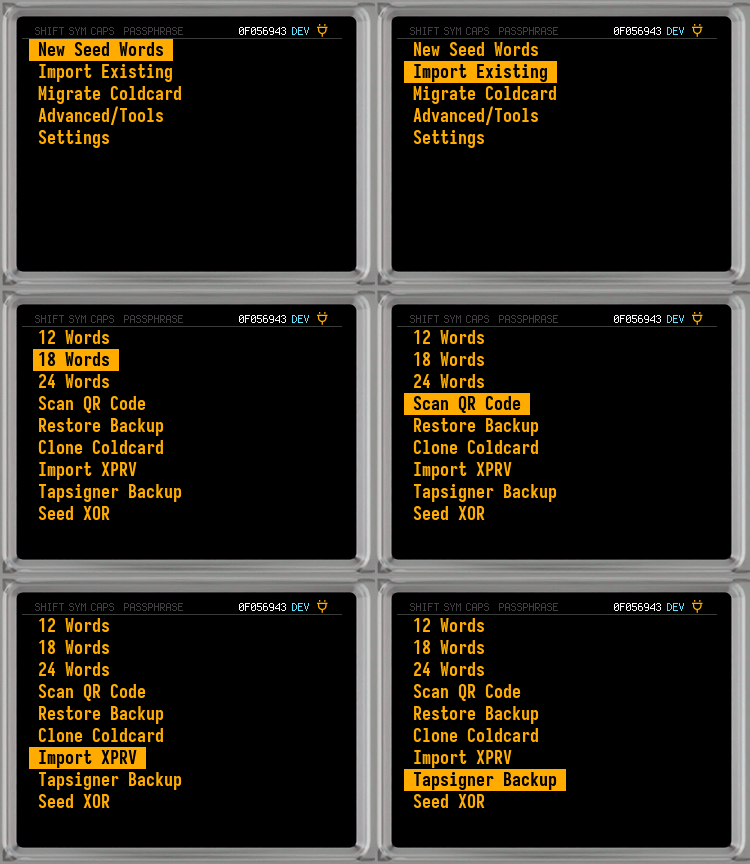
To begin, select
Tapsigner Backupfrom the Import Existing Menu.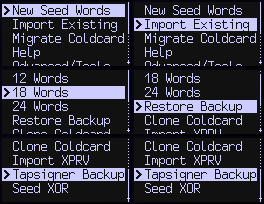
-
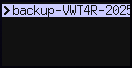
On the Mk4, if the Virtual Disk and NFC are not enabled, the COLDCARD will list all the TAPSIGNER backup files now. You can skip to Step 3.
-
-
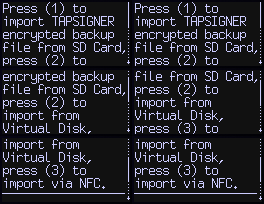
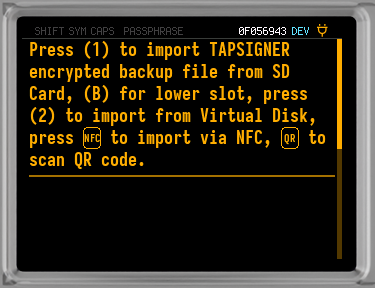
On the Q, and the MK4 when the Virtual Disk is enabled, you will have to choose where to import the XPRV from:
-
Next choose the
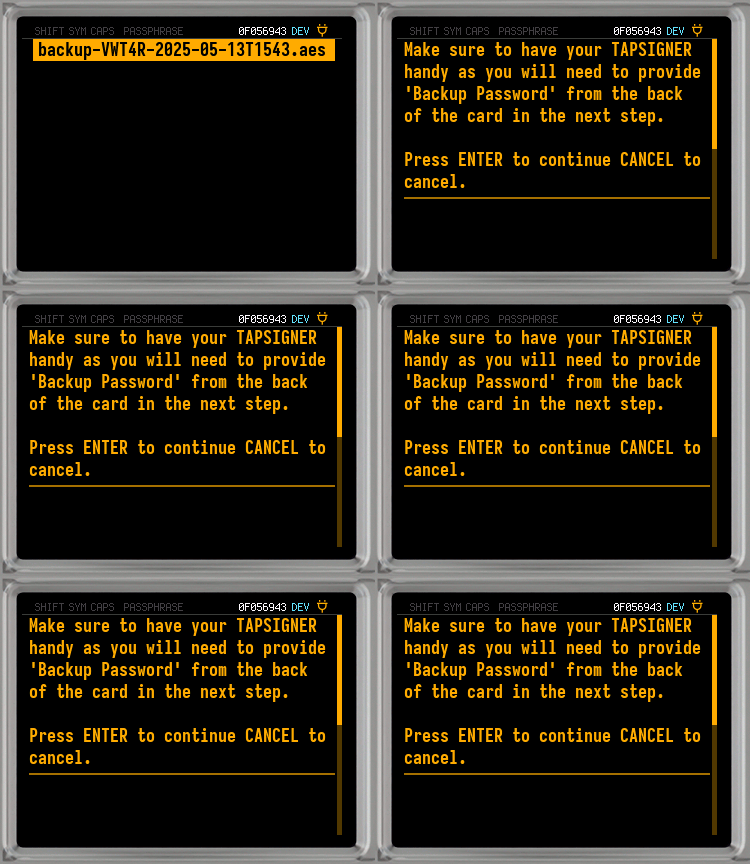
.aesfile, tap the NFC-enabled device with the backup, or scan the QR code.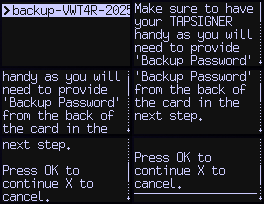
-
Have your TAPSIGNER available to retrieve the Backup Password, and press ✔/ENTER.
-
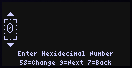
Enter the Backup Password from the TAPSIGNER into the COLDCARD.
-
Once entered, your COLDCARD will generate the XPRV and store it safely. You can now export the public key and view the funds on any Compatitble Software Wallet.
Extract TAPSIGNER XPRV (Raw)#
The TAPSIGNER can generate a backup file of its master private key. This file is protected by a factory-programmed password, which can be found on the back of the card.
To verify that your backup works correctly or to recover the private key, you can run the below command on the command line. Replace PASSWORD with your TAPSIGNER's backup password, and FILE with the path to your backup file.
openssl aes-128-ctr -iv 0 -K PASSWORD -in FILE.aes
If everything works correctly, you should be able to see the master private key printed out as simple text. The key starts with the prefix xprv.
For best security, we recommend that you only run the above tools on a secure machine, and immediately remove the backup file afterwards.
These steps will expose your private key to the local machine. Use at your own risk!
Nunchuk Recovery#
-
On the main screen select the
Keystab.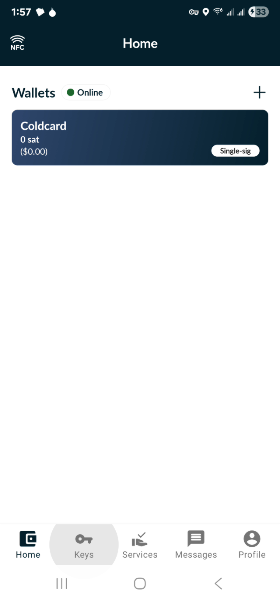
-
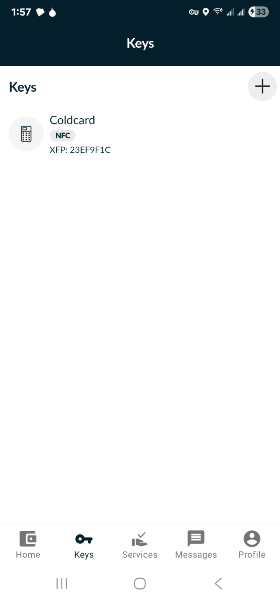
Click on the '+' at the top of the screen.
-
Pick
TAPSIGNERfrom the available options.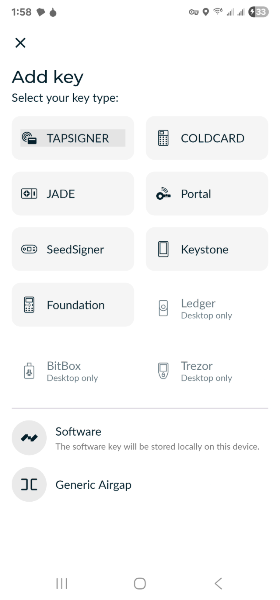
-
Select
Recover TAPSIGNER key from backup.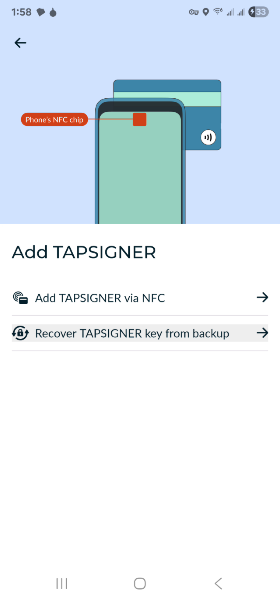
-
Hit
Continue.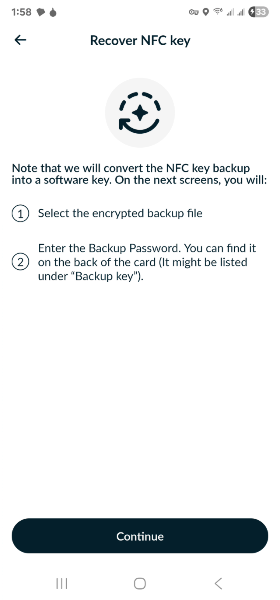
-
Select the
.aesfile from your phone's internal storage or a cloud location, and clickDone.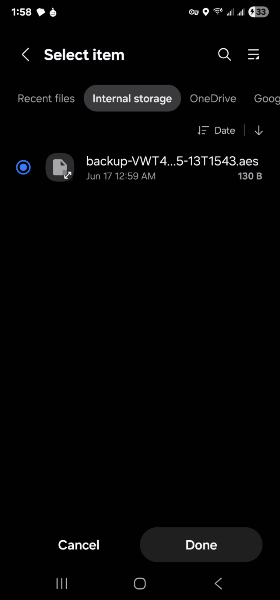
-
Input the Backup Password from the back of the TAPSIGNER, and tap
Continue.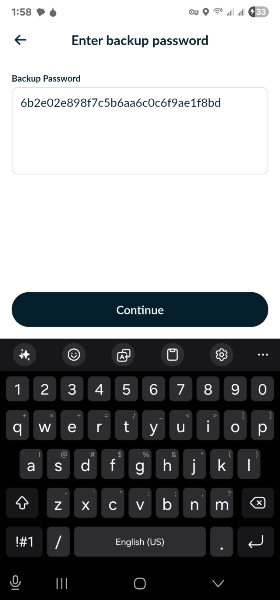
-
Name your recovery key, and hit
Continue.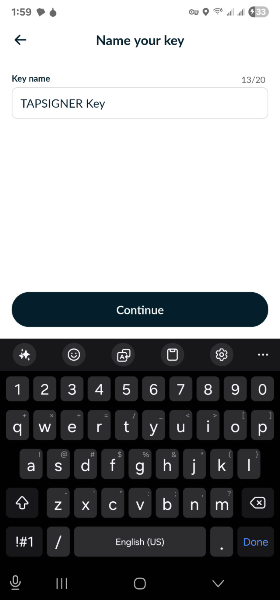
-
Your TAPSIGNER key has now been recovered on Nunchuk.
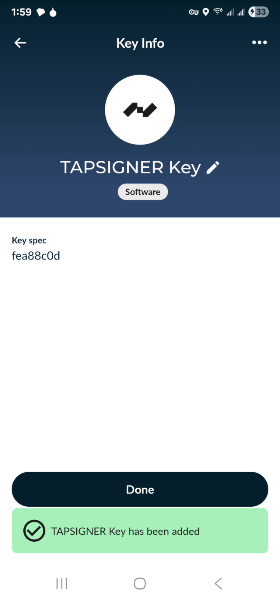
Keep in mind that this is now a software key (hot) and no longer requires the TAPSIGNER to sign transactions.
Seed XOR#
Combine seeds previously split with Seed XOR (12, 18, or 24 words) and apply to the COLDCARD as the Master Seed. You must have access to all parts of the split seed to complete the process.
Steps to Combine and Import Seed XOR Parts
If you don't wish to use the combined seed as the Master Seed and prefer a "one time use", you can import it as a Temporary Seed — meaning you do not need to Destroy Seed first. To do this, go to: Advanced/Tools > Temporary Seed > Restore Seed XOR, or Advanced/Tools > Danger Zone > Seed Functions > Seed XOR > Restore Seed XOR. This way the Master Seed is preserved and combined seed will only last until the device is powered off, with an option to save it in the Seed Vault.
-
First, make sure you have all the parts of your split seed. Only you know how many total parts you need (max 4), which was decided when the seed was split.
-
Select
Seed XORfrom the Import Existing Menu.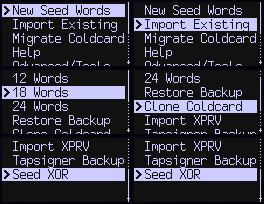
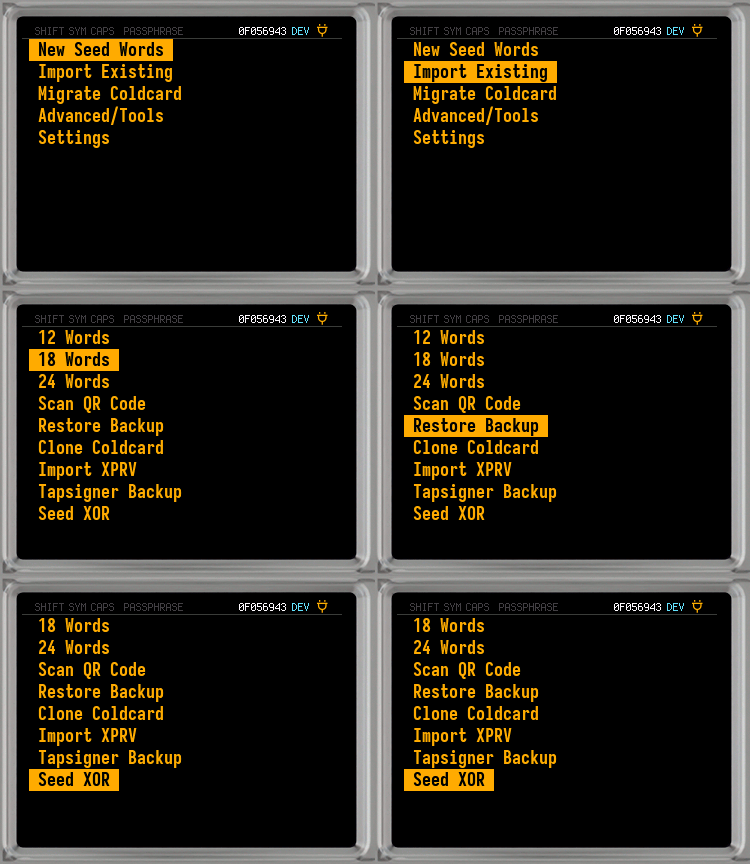
-
Read the information, and choose how many words are in each of your parts (all parts must be equal length):
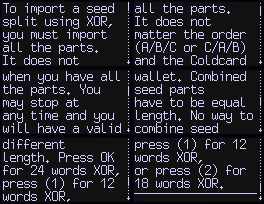
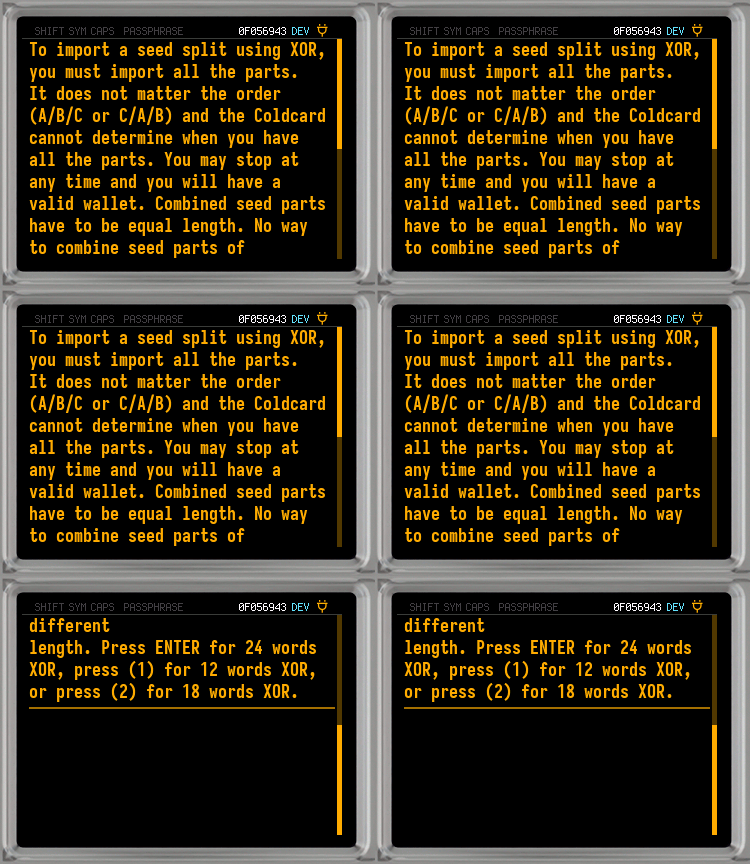
- ✔/ENTER: 24 words
- 1: 12 words
- 2: 18 words
-
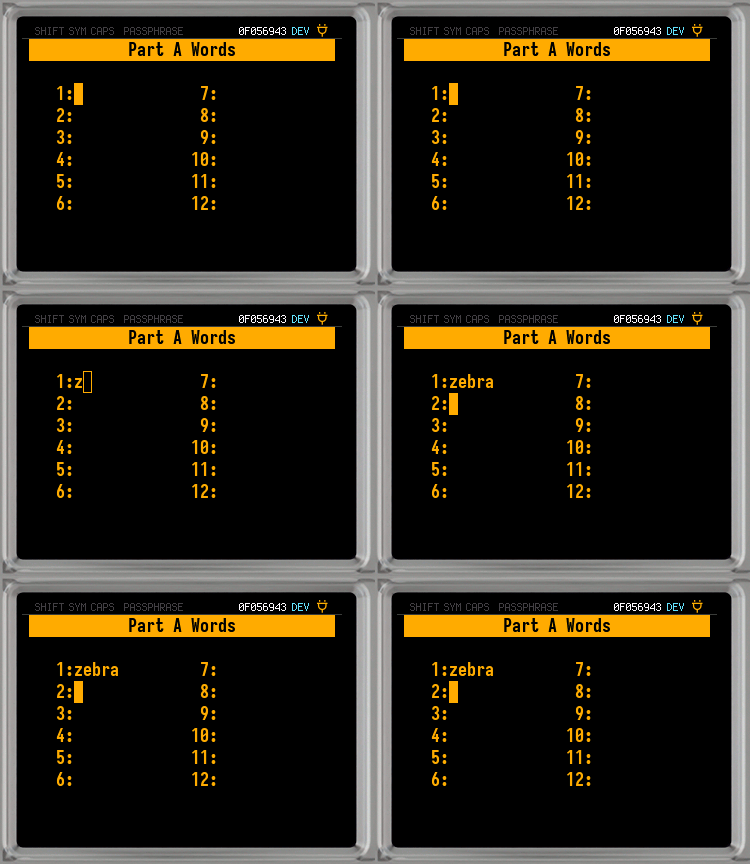
On the next screen you need to enter Part A of the split seed. It doesn't matter which part you use for Part A, as the parts can be entered in any order. However, the words in each part DO need to be entered in correct order.
-
COLDCARD Q: Use the keyboard to type each of your seed words. When you've typed enough characters the words will auto-complete for you. For shorter words, you may have to press ENTER to move on.
If you make any mistakes, use the ⌫ key to go back a single character or a whole word. Tap CANCEL if you need to quit.
- To scan a QR code of the words, hit QR.
-
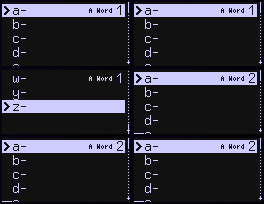
COLDCARD Mk4: Scroll up and down to select each letter of each word individually until all words have been entered. Use 5 and 8 to scroll through your choices, which reduce with each letter you add. Your current part and word count is on the top right corner of the screen.
Use the X key to go back a character or word, press repeatedly to remove all words and start over.
-
-
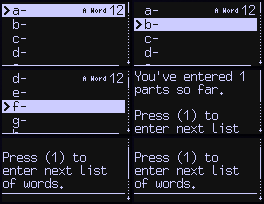
Once you've entered the final word, press ✔/ENTER.
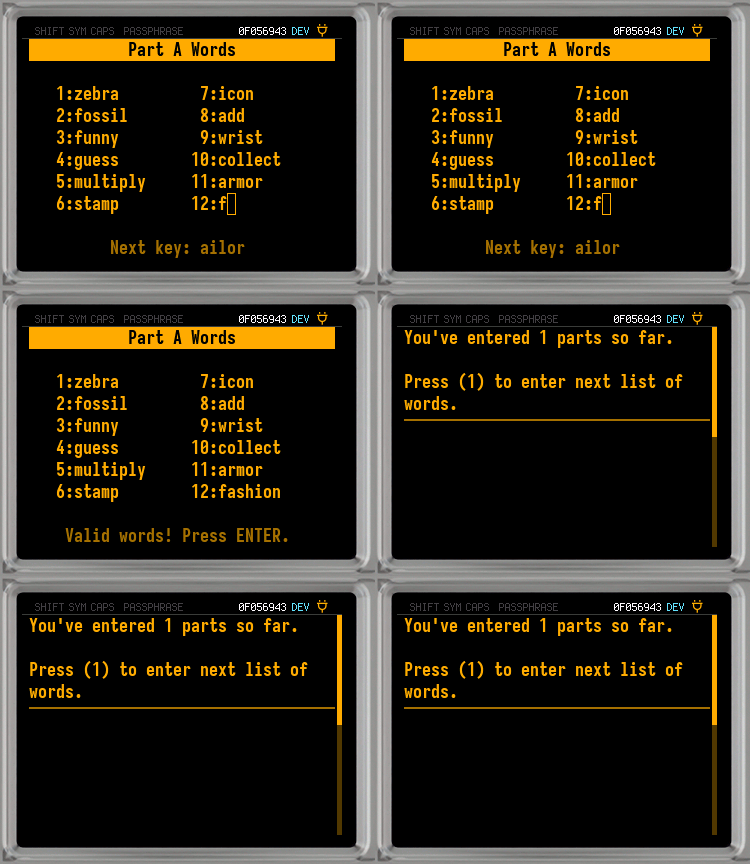
-
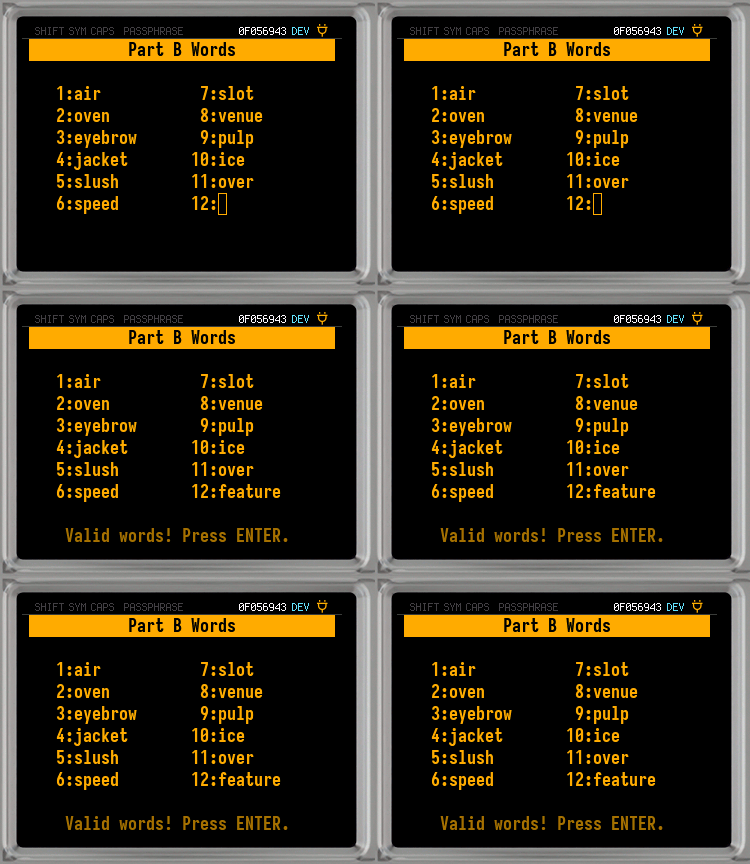
Hit 1 to move on to Part B, and repeat the steps for entering the seed words.
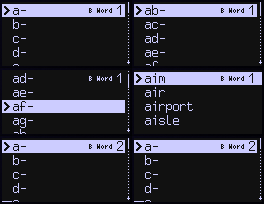
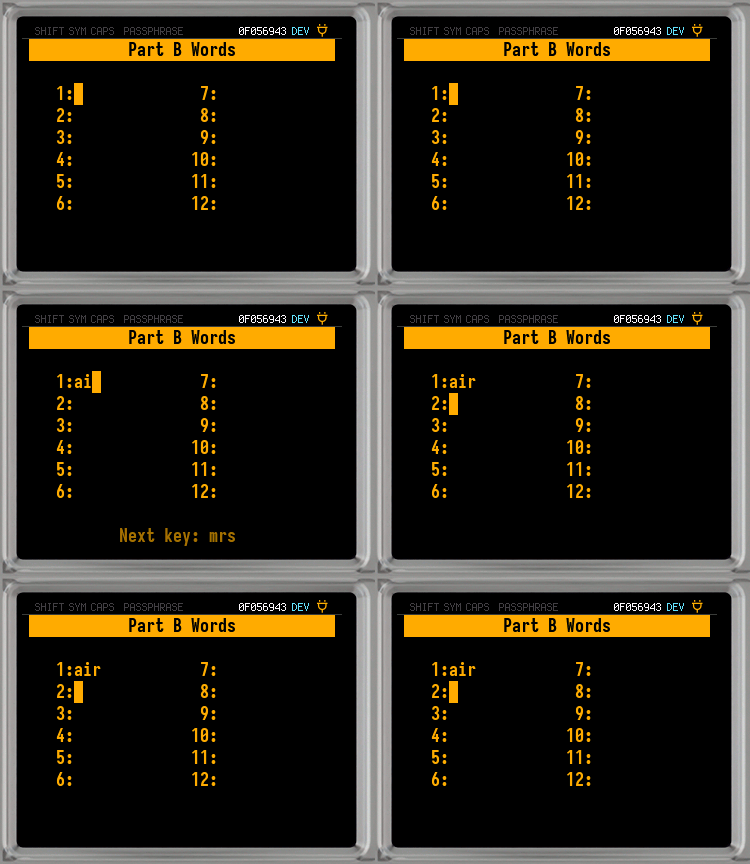
-
After entering the final word of Part B, tap ✔/ENTER.
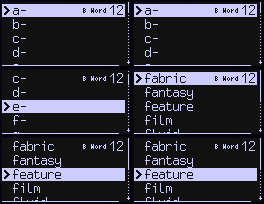
-
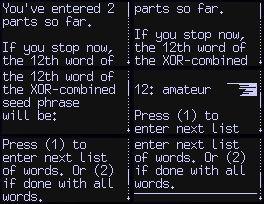
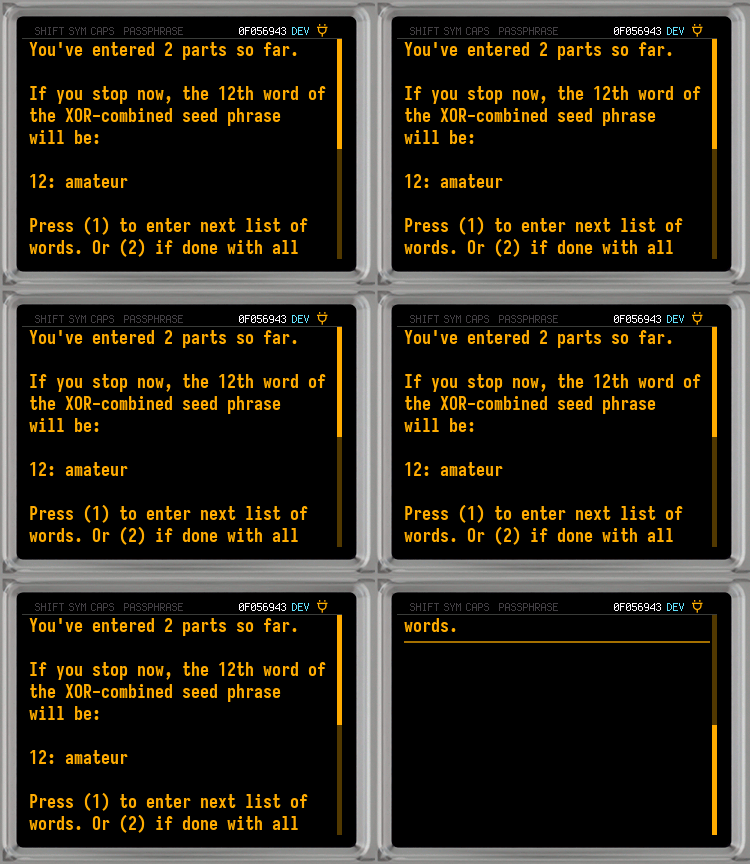
The next screen will show you how many total parts you have entered, along with the final word of the seed these parts will create. If you still have parts to enter, repeat Steps 6 and 7 until all your parts have been entered.
When all the parts have been entered, move on to Step 9.
-
Now that all your parts have been entered, press 2 to apply the combined seed as the Master Seed of the COLDCARD.
-
Tap ✔/ENTER to start using your COLDCARD with the new Master Seed.