
 Shop
ShopBitcoin self-custody means controlling your own private keys. Whoever holds the keys, controls the bitcoin.
This guide covers the complete journey: choosing and verifying a signing device, initializing it, securing the seed phrase backup, and getting connected to your coordinator software.
Before you begin
Four foundational concepts underpin everything in this guide. If any are new to you, read the following articles before continuing.
- What is Bitcoin private key? A private key is the cryptographic secret that proves ownership of bitcoin and is used to authorize transactions.
- What is Bitcoin self-custody? Self-custody means holding your own private keys rather than trusting a third party to hold them on your behalf.
- What is a hardware wallet? A hardware wallet is a dedicated signing device that generates, stores, and uses your private keys in isolated secure hardware.
- What is a seed phrase? A seed phrase encodes the master secret from which all of your private keys are derived and serves as the backup for your entire wallet.
Choose your Coldcard
Why Coldcard?
Every system that can touch your private keys is a potential attack surface. The fewer systems involved, the smaller the risk. That principle drives how Coldcard devices are built.
Three design principles reduce the systems and interfaces that users must trust:
- Bitcoin-only firmware. Supporting multiple assets means implementing multiple protocols. Each one adds code, maintenance burden, and attack surface. Bitcoin-only firmware avoids that multi-asset complexity: one asset, one purpose, and one codebase to inspect.
- Air-gapped operation. Any connection between a signing device and a networked machine is a potential attack vector. Coldcard supports QR or MicroSD signing workflows that avoid a direct data connection to the coordinator. This reduces exposure; it does not remove the need to verify transaction details on the COLDCARD screen.
- Open-source code. Closed-source firmware requires trusting the manufacturer's claims about what the code does. Coldcard's firmware is public, and published verification material includes signed-release checks and scoped reproducible-build evidence.
Q or Mk5
Coldcard comes in two versions. If you're unsure which one to choose, read the full side-by-side comparison of the Coldcard Q and Mk5.
-
Coldcard Q: Full QWERTY keyboard, built-in QR scanner for cable-free air-gapped signing, large color display, and battery operation (3 × AAA). Best for users who want the most capable workflow and prefer not to use cables.
-
Coldcard Mk5: Compact 12-key numeric keypad, monochrome display, and USB-C powered. Can display QR codes but has no camera. Best for users who prefer a smaller form factor and are comfortable with MicroSD-based workflows.
Where to buy
Buy directly from Coinkite at coinkite.com, or from an authorized reseller listed on the website. Do not buy from secondhand markets or any seller not listed as authorized. A device that has passed through an unknown chain of custody could have been modified. The tamper-evident packaging provides one layer of verification, but it is not a substitute for buying from a trusted source.
What you will need
-
MicroSD cards. Coldcard uses MicroSD to transfer files between the device and your computer without a network connection. If you have a Coldcard Q, you can sign using QR codes instead, but a MicroSD card is still useful for wallet exports and firmware updates. MicroSD cards are available at coinkite.com.
-
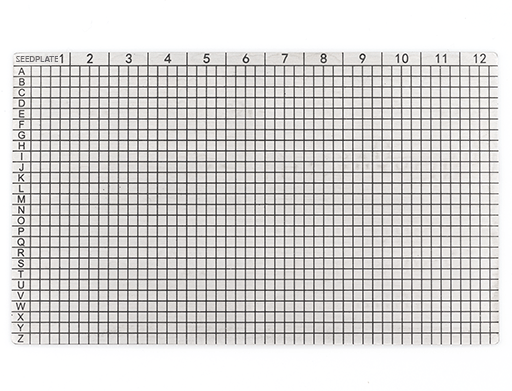
Seed backup material. Writing down your seed phrase is part of the initialization process. Paper is the standard starting point, but metal is more durable for long-term storage. Coinkite makes the Seedplate, a stainless steel plate designed for seed phrase storage.
-
Power source. The Coldcard Q runs on three AAA batteries or a USB-C connection. Batteries are not included and must be sourced separately. The Coldcard Mk5 is powered via USB-C cable. Power accessories are also available at the Coinkite store.
-
Coordinator software. Coldcard devices manage your private keys, including generating, storing, and signing. To watch your balance, set up transactions, and broadcast transactions, you need coordinator software on your computer or phone. A recommended coordinator software is Sparrow Wallet, a free open-source desktop application for macOS, Windows, and Linux. The full setup procedure is in Coldcard and Sparrow Wallet Setup.
-
Additional signing devices (for multisig). If you plan to set up a vault requiring more than one device to approve each transaction, each co-signer needs its own device and seed backup material. Device bundles are available at the Coinkite store for multisig setups.
Acquire your bitcoin
If you do not already own bitcoin, you will need to choose where to buy it. Not all platforms are equal.
Custodial vs. non-custodial
-
Custodial: Most bitcoin exchanges are custodial, meaning they hold the private keys and your bitcoin does not truly belong to you until you withdraw it. Your bitcoin balance is a liability on their books, not actual bitcoin in your possession.
-
Non-Custodial: Non-custodial service delivers bitcoin directly to a wallet you control at the point of purchase, with no holding period and no intermediary holding your keys. Whether a custodial platform is an acceptable arrangement depends on how much bitcoin you plan to hold there and for how long.
A small amount held briefly carries different risk than a larger balance held for months. The larger the balance and the longer the timeframe, the more exposure you carry to that platform's risk of failure, security breach, or regulatory action. The purpose of this guide is to move your bitcoin out of custodial custody and into your own control.
Before committing to a platform, compare these factors:
- Fees and spread. The fee structure and the gap between buying and selling price both affect how much bitcoin you receive for what you pay.
- Reputation and operating history. Use platforms with a verifiable track record and a history of handling withdrawals reliably.
- Withdrawal limits. Some platforms impose daily or monthly limits. Confirm these before signing up, especially if you plan to move larger amounts to your Coldcard.
- Identity requirements. Most regulated platforms require documentation before you can withdraw. Know what is required before committing.
Bitcoin-only platforms are generally preferred over multi-crypto exchanges. An exchange focused on a single asset can concentrate its operations and security on Bitcoin's specific requirements. Multi-asset platforms may have more of a structural incentive to encourage active trading of multiple crypto coins.
Whatever platform you use, the goal after purchase is to withdraw bitcoin to an address to which you have the exclusive control of the private keys.
Stage 1: Verify your device
Once you have placed your order, your Coldcard (along with any MicroSD cards, Seedplate, or other accessories you ordered) will be delivered. Your Coldcard will be sealed inside a clear tamper-evident bag.
Follow these steps upon receipt of the package.
-
Examine the bag for signs of tampering. Look for damage, punctures, or any evidence the bag has been opened and re-sealed. The bag is designed to show visible distortion if it has been opened.
-
Find the serial number on the bag exterior. The serial number is printed on a label on the outside of the bag. Note it down.
-
Check the tear-off tab inside the bag. Inside the bag there is a serialized tear-off tab carrying the same number as the exterior. Confirm both numbers match before going further.
-
Power on your device. Add the batteries and press the Power On button for one second (Coldcard Q) or connect to a power source via USB-C (Coldcard Mk5).
-
Confirm the on-screen serial number. After accepting the Terms of Sale, the device displays the serial number stored in its secure memory. This is the definitive check. Confirm it matches the bag exterior and tear-off tab exactly.
If anything looks wrong at any step, do not proceed past the Terms of Sale screen. Contact Coinkite support at support@coinkite.com before going further.
Stage 2: Initialize your device
Initialization sets your PIN and generates the seed phrase that is the cryptographic root of your wallet. PIN setup comes first, followed by a menu step where you select seed generation.
Setting the PIN
Your PIN has two parts: a prefix and a suffix. Each part must be between 2 and 6 digits, giving you a combined PIN of 4 to 12 digits. The format of your PIN could like any of the following:
12-341234-5678872323-39843
Before you can enter the prefix, the device shows two screens to acknowledge: first, an information screen about how the PIN system works, then a warning that there is no recovery path for a forgotten PIN. You must press the specific key indicated on screen to confirm you have read the warning. The PIN is stored in the secure element and cannot be recovered by any means, including by Coinkite.
After entering the prefix, the device displays two anti-phishing words derived from that prefix on that device. The expected pair helps you recognize the same device before entering the suffix. If the words ever look unfamiliar, stop and investigate.
You can try a few different prefixes before committing. Each produces a different word pair, and some are easier to remember than others. Once you settle on a prefix you are happy with, write the anti-phishing words down alongside your prefix digits and verify them on every login. If the words ever look unfamiliar, stop and do not enter the suffix.
The confirmation phase re-runs the full sequence: re-enter the prefix, verify the anti-phishing words again, then enter the suffix. This ensures no entry mistake was made during setup.
Coldcard recommends a minimum of four digits in each part, rather than 2 digits. For example, 1234-5678 rather than 12-34. Two-digit parts are permitted but shorter PINs are weaker than longer PINs.
Generating the seed phrase
After PIN setup, it's time to set up your bitcoin wallet.
Before selecting New Seed Words, check the current security status and verify the signed firmware. The current recommended standard releases are Q 1.5.2Q and Mk4/Mk5 5.6.2. The minimum fixed boundaries for the July seed-generation issue remain Q 1.5.0Q and Mk4/Mk5 5.6.0; updating does not repair an existing affected seed.
Select New Seed Words, then choose either 12 or 24 words. Current standard firmware requires one user-entropy method before it generates the final seed:
- Mash Keys: at least 65 key presses with unpredictable timing;
- Dice Rolls: at least 50 rolls of a physical six-sided die; or
- Coin Flips: at least 128 flips of a physical coin.
The standard workflow combines that input with fresh device entropy from its generator and both secure elements. Keep every input private and unrecorded. Dice Rolls Only remains a separate advanced workflow requiring 50 rolls for 12 words or 99 for 24 words; its on-screen hash is also secret.
Current firmware also offers View TRNG Words before the mix. The public verify_seed_mix.py tool can check dice-roll or coin-flip mixing offline; it does not support Mash Keys. Use a disposable run to check the math, then start again with new TRNG words and fresh, unrecorded input for the wallet you will fund.
A 24-word seed encodes more entropy, while 12 words is easier to write down and verify. If you are unsure which to choose, What is a Seed Phrase? explains the differences. This decision cannot be changed without generating a new wallet.
Once the words appear on screen, write each one down on the paper backup card included in the box. Work through them in order:
- Read word 1 on the screen.
- Write it on the card in position 1.
- Repeat for every word until all 12 or 24 are recorded.
- Read the full list back from your card against the screen before advancing.
The device then runs a quiz asking you to enter specific word positions from your written backup. The wallet is not activated until the quiz passes. Do not advance past the word list screen until every word is written and verified.
For the full step-by-step procedure with exact menu paths and screenshots, follow Set Up Your Coldcard Q, or Set Up Your Coldcard Mk5.
Stage 3: Secure your seed phrase
Your seed phrase is your recovery mechanism. Anyone who obtains it can access your bitcoin without the device. Anyone who permanently loses it has permanently lost access to any bitcoin that wallet holds.
Three things need to happen now, before the wallet holds a meaningful balance.
-
Transfer to metal now, if you have backup material ready. You have just written every word carefully. Do the same on metal while you are still set up, with your paper backup in front of you.
A suitable metal backup can better tolerate heat, water, and physical damage than paper. Stamp or engrave each word in order onto the Seedplate or comparable plate, then compare the completed plate against your written list word by word before putting either away.
-
Keep both backups on physical media only. Do not photograph the seed phrase, type it into any device, paste it into a notes app, save it to a cloud service, or enter it into any website or app that requests it. Treat a seed entered on an internet-connected device as exposed and replace the wallet before relying on it.
-
Plan the passphrase recovery. For any wallet intended to hold an amount whose loss would be materially harmful to you, use a strong, unique BIP-39 passphrase after verifying the base seed backup. Back it up exactly and separately, record the passphrase wallet's fingerprint, power-cycle the COLDCARD, and test recovery before depositing funds. A lost or mistyped passphrase cannot be recovered. Reserve the base wallet without a passphrase for setup, testing, or a deliberately limited balance.
You will still need a plan for where to store your seed phrase long-term: a location physically separate from the device, protected against fire and flooding, and accessible only to yourself or someone you trust in an emergency. These considerations need to happen as part of your self-custody plan and should not be put off indefinitely.
For a detailed guide to backup strategies, storage materials, and location decisions, read How to store your Bitcoin seed phrase after completing initialization.
Stage 4: Connect coordinator software
Your Coldcard stores and protects your private keys, but it cannot connect to the internet or check your balance. This is the role of your coordinator software, which watches your wallet on the Bitcoin network, generates receiving addresses, and builds transactions for your Coldcard to sign.
In the normal signing workflow, the active private keys stay on COLDCARD: the coordinator assembles the transaction, COLDCARD signs it, and the coordinator broadcasts the result. Explicit backup and private-key export features are separate operations and must be protected accordingly.
Sparrow Wallet is the recommended choice for a first setup. It is open-source, actively maintained, and works fully air-gapped with Coldcard via MicroSD. The full connection procedure is in Coldcard and Sparrow Wallet Setup.
Export your wallet from Coldcard
Before opening Sparrow, you need to export your wallet descriptor from the Coldcard. With a MicroSD card inserted:
- From the main menu, go to Advanced/Tools.
- Select Export Wallet.
- Select your coordinator software. Sparrow Wallet is listed by name.
- The Coldcard writes the wallet file to the MicroSD card.
- Return to the main menu and remove the MicroSD card.
Take that card to your computer and open Sparrow Wallet. The full import procedure is in Coldcard and Sparrow Wallet Setup.
What Sparrow can and cannot do
Once the wallet is imported, Sparrow watches your addresses on the Bitcoin network and displays your balance. It can generate receiving addresses and build transactions. A watch-only import does not contain the private keys needed to sign. Spending therefore requires COLDCARD or recovery from the separately protected wallet secrets.
This is possible because of how Bitcoin works. When you exported your wallet from Coldcard, you exported your XPUB, an extended public key from which all of your receiving addresses can be derived. Sparrow uses the XPUB to generate addresses and monitor incoming funds. Generating an address and controlling the funds at that address are two different things. Anyone can send bitcoin to an address. Only the holder of the corresponding private key can spend it.
Receiving your first bitcoin
With your wallet connected, you are ready to receive bitcoin. Get a receiving address from Sparrow's Receive tab, then verify it on the Coldcard screen via Address Explorer before using it, which can be accessed from your Coldcard's main menu. This confirms the address belongs to your device and protects against attacks where compromised software substitutes a different address.
Once verified, paste your Bitcoin address into your exchange withdrawal screen, enter the amount, and submit. The bitcoin will arrive in your Sparrow wallet once the transaction is confirmed on the network.
When the transaction settles, the bitcoin is held at an address controlled by the wallet keys. An exchange or custodian no longer controls it; spending requires COLDCARD or equivalent access to the wallet's recovery secrets.
As you begin transacting, it is worth understanding how to properly manage your bitcoin. Below are resources to ensure you are equipped.
- UTXO management: Bitcoin arrives in discrete amounts known as UTXOs, and how you manage and spend them has consequences for fees and privacy.
- Transaction security: Sending bitcoin correctly requires more than having the right address, and small mistakes at signing time are not recoverable.
- Bitcoin privacy: Every transaction you make is permanently visible on a public blockchain, and without some awareness of that, your financial activity is an open record.
Common mistakes
Below are errors that can occur in a first Coldcard setup. Each one is preventable.
-
Buying from an unauthorized seller. Only buy from Coinkite at coinkite.com or a listed authorized reseller. A device from an unknown seller may have been modified before it reached you. No price difference justifies that risk.
-
Powering on a device with a compromised bag. If the tamper-evident bag shows damage, punctures, or signs of re-sealing, stop. Contact Coinkite support before doing anything else with the device.
-
Writing seed words out of order or with errors. The word sequence is the key. Copy each word carefully, one at a time, in the exact position shown. Do not rely on memory and do not rush.
-
Storing the seed phrase digitally. A photo on your phone, a note in a cloud app, or a file on your computer stores the seed phrase on an internet-connected device. This defeats the purpose of self-custody entirely.
-
Keeping the seed phrase and the Coldcard in the same location. If one location is compromised, the combination of device and seed phrase gives an attacker full access. Store them separately.
-
Skipping the seed verification quiz. The quiz is the only moment in initialization where you confirm your written backup is accurate. A backup that has never been verified is one you cannot rely on.
-
Skipping address verification after connecting Sparrow. If Sparrow is watching a different wallet than your Coldcard, funds sent to its addresses cannot be recovered by your device. Verify the first address before receiving anything.
-
Entering your seed phrase anywhere that asks for it. No legitimate software, service, or support agent will ever ask you to enter your seed phrase outside of your Coldcard's own recovery procedure. Any request for seed phrase entry is an attempt to steal your bitcoin.
Troubleshooting
| Symptom | Potential cause | Resolution |
|---|---|---|
| Tamper-evident bag arrives damaged or shows signs of re-sealing | Packaging may have been compromised during shipment or prior to it | Do not power on the device. Contact Coinkite support at support@coinkite.com. |
| Serial number on bag does not match the number displayed on screen during setup | Incorrect device packaged or labeling error | Do not continue setup. Contact Coinkite support before proceeding. |
| Seed phrase quiz fails repeatedly | Written words contain a transcription error | Coldcard permits re-attempts. During the quiz, press ✔/ENTER to request the full word list on screen, then compare each word carefully against your written backup before trying again. |
| PIN forgotten before any bitcoin has been received | No recovery path exists for a forgotten PIN | Restore your existing seed phrase to a new device using your written backup. No funds are at risk as no bitcoin was deposited. |
| Sparrow's first receiving address does not match Coldcard's Address Explorer | Wrong wallet exported, export did not complete, or passphrase wallet mismatch | Re-export from Coldcard. If using a BIP-39 passphrase, confirm it is applied on Coldcard before exporting. |
What to do next
This guide has covered the self-custody journey at an overview level. The device setup guides provide the full step-by-step procedure for your specific device, including screenshots and exact menu paths for PIN setup, seed generation, and the verification quiz.
Next guide (Q owners): Set Up Your Coldcard Q covers a device-specific overview, first power-on through PIN setup, seed generation, and the verification quiz.
Next guide (Mk5 owners): Set Up Your Coldcard Mk5 covers a device-specific overview and the same milestones adapted for the Mk5's 12-key keypad.
Next guide: Coldcard and Sparrow Wallet Setup covers setting up your coordinator software with Sparrow Wallet and receiving your first bitcoin into self-custody.
Related guides
Set Up Your Coldcard Q
The step-by-step initialization guide for Coldcard Q owners: PIN setup, seed generation, and first power-on.
Set Up Your Coldcard Mk5
The same initialization milestones adapted for the Mk5's 12-key keypad.
How to Store Your Bitcoin Seed Phrase
A complete guide to seed phrase backup: storage materials, security principles, and location strategy.
Why Use a Hardware Wallet?
The reasoning behind a dedicated signing device and what it protects against that software custody cannot.